


An Android app installs in a few seconds, and a bad one can leak your data or slow the whole phone down. Fake listings, permission requests that make no sense, a run of bad recent reviews, and apps nobody has updated in years are the usual red flags.
You don’t need an hour of research for every app. Two minutes of checking is enough to tell whether an app is genuine and deserves the space.
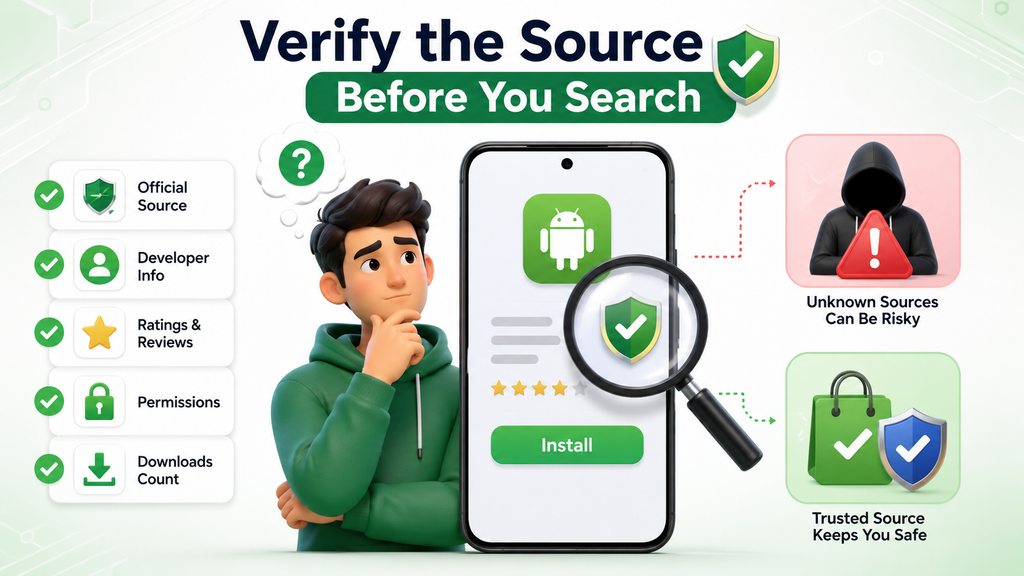
Step 1: Verify the Source Before You Search
The place you download from matters as much as the app.
Stick to Official Stores First
Google Play should be your first stop. Apps there go through automated scanning and review, which most third-party stores skip.
APK files from outside the store are a last resort, and you should have a clear reason for using one, such as an app that isn’t offered in your country or a version the developer only publishes on its own website.
Spotting Clone or Lookalike Apps
Fake copies of popular apps are common. Signs to look for:
- The app name is almost same but slightly misspelled
- The logo is slightly off
- A supposedly popular app has very few downloads
- The listed developer name doesn’t match the actual company
If something feels slightly off, it usually is. Check again before installing.
Step 2: Read the App Listing Closely
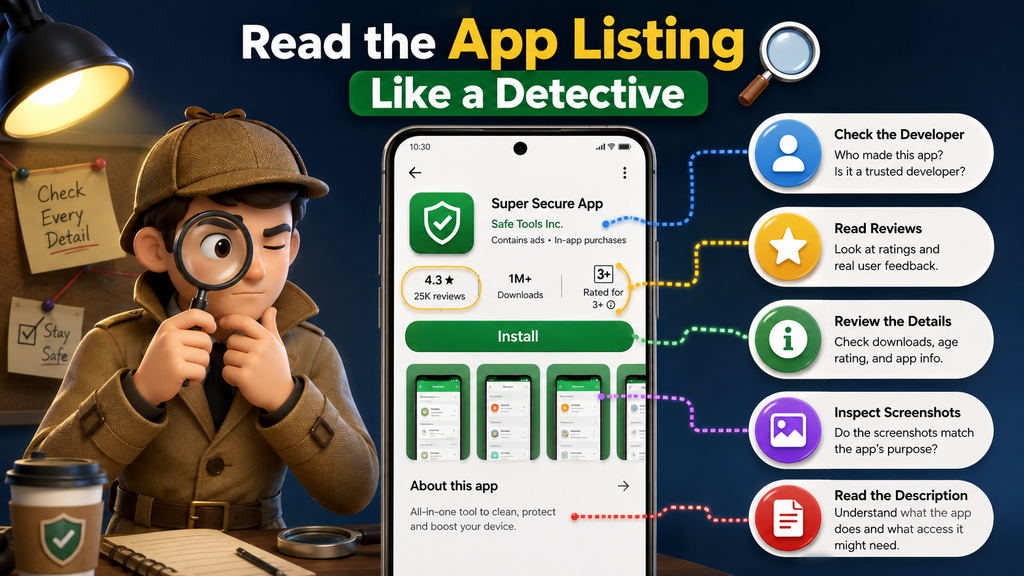
Most of what you need to know is on the store page, so spend your time here.
Check the Developer’s History
Every app lists a developer, and sometimes a separate vendor. A developer with several other apps and a long history is a safer bet.
An unfamiliar or generic name, or a developer with nothing else published, means you should look closely before installing.
Look at Ratings, But Read the Recent Reviews
Reviews get manipulated too. Google’s anti-spam systems reportedly blocked 160 million fake or manipulated ratings and reviews in 2025, including attempts to inflate or deflate scores.
A wave of five-star reviews with vague praise like “good app”, all posted within the same few days, is a reason to trust the star rating less. Look for reviews that describe specific features or problems.
Review the Requested Permissions
A simple question helps here: does this app actually need what it’s asking for? A basic note-taking app asking for access to your camera, microphone, or contacts is a red flag. Permissions should match what the app is meant to do, nothing more.
Understand the Data Safety Label and Its Limits
Every Google Play listing has a Data Safety section that lists what data the app collects and whether it shares it.
Developers fill it in themselves, and it is unclear how far Google independently verifies it.
An app can say it shares nothing while running third-party ad tools that do. Use the label to spot obvious mismatches, such as a flashlight app that lists location and contacts, and don’t treat it as proof.
Check App Size and Update Frequency
Big apps take longer to install and use more storage, which matters even more if your phone is already close to full.
Check the last update date as well. An app that hasn’t been updated in a long time probably isn’t maintained, so bugs and security holes stay open.
Step 3: Check Device-Side Protections
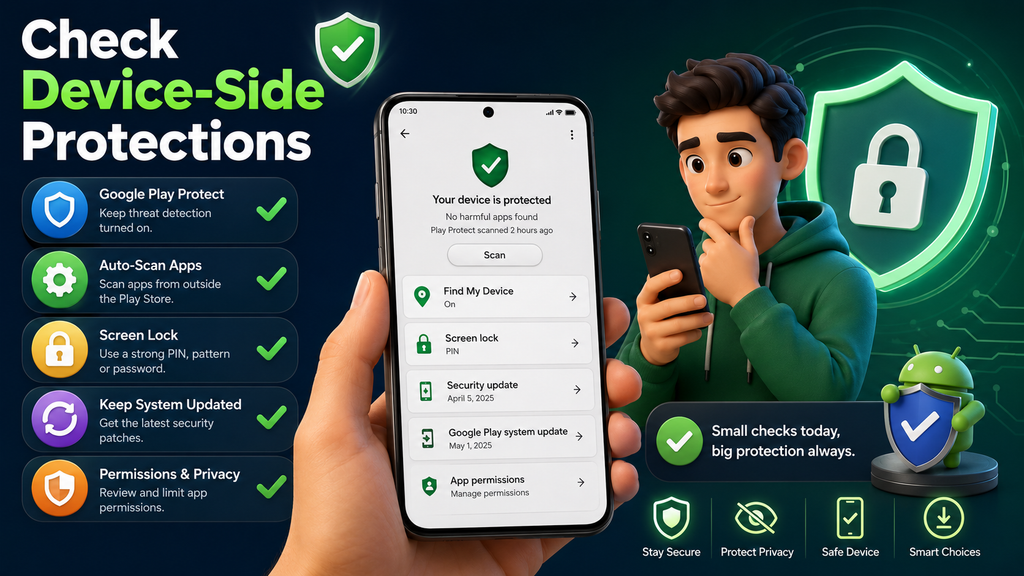
Your phone already has some built-in defenses. Make sure they’re switched on before you install anything.
Confirm Google Play Protect Is Turned On
Google Play Protect scans apps before and after installation for harmful behavior.
To check, open the Play Store, tap your profile picture, choose Play Protect, then tap the gear icon and make sure the “Scan apps with Play Protect” toggle is on. Menu labels differ slightly between phones.
Match the App’s Requirements to Your Device
A safe, well-reviewed app can still run badly on a phone that doesn’t meet its requirements. Check the minimum Android version and the storage it needs before installing.
When an app crashes or lags, a mismatch like this is often the cause rather than the app itself.
Older phones get caught out most, because developers eventually drop support for old Android versions. If yours is a few years old, how long an Android phone stays supported is worth a look before you blame the app.
Step 4: Extra Caution for APK Installs
Skip this section if you only use the Play Store. If you ever install APK files directly, these checks apply.
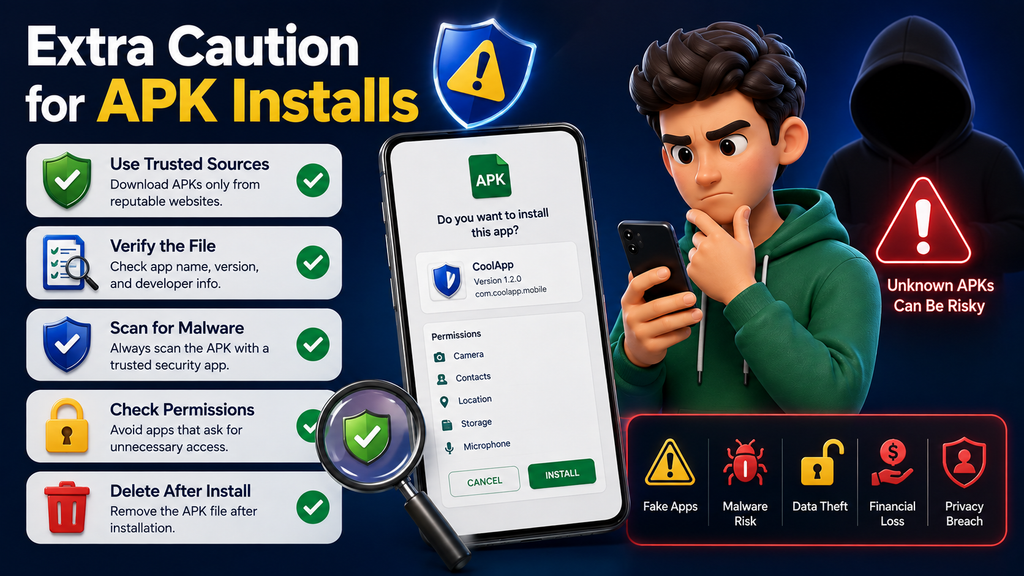
Only Download APKs From Known, Verifiable Pages
A legitimate APK page states the version number and install steps clearly and doesn’t throw pop-ups or redirects at you. Stay away from random file-sharing sites, which can host old or modified files with no warning.
Verify File Details Before Opening
Compare the file size and version number with what the official source lists before you open the file. If they don’t match, the file may have been altered.
What to Watch For After Installing
The checking doesn’t have to stop the moment you install. If an app asks for notification access straight away, deny it and enable it later, once you know the app is worth keeping.
Also make sure you can uninstall the app easily. Some apps request device admin access, and that makes them harder to remove.
A few minutes on the source, the permissions, and the recent reviews will catch most problems before they reach your phone. Make it a habit and a bad app has a much harder time getting onto your device.
