Close Menu
My Android News – Android News, Apps & Phone UpdatesMy Android News – Android News, Apps & Phone Updates
    Facebook X (Twitter) Instagram Threads
    Trending
    • Do You Really Need a Gaming Phone for Android Games?
    • How Much Phone Storage Do You Actually Need on Android?
    • How to Design an Android App in Figma: My 10-Step Workflow
    • Common Android App Development Mistakes and How to Avoid Them
    • Android App Development Best Practices for Faster and More Secure Apps
    • 10 Android App Development Tips for Building Your First App
    • Google Pixel 7 Pro Review 2026: Camera, Battery, Display, and Performance
    • Nothing Phone 2: Is It Still Worth Buying? My Honest Review
    Facebook Instagram Pinterest YouTube LinkedIn
    My Android News – Android News, Apps & Phone UpdatesMy Android News – Android News, Apps & Phone Updates
    • Home
    • Android Apps
    • Android Gaming
    • Android How-To
    • Android News
    • Android Phones
    • Android Tips
    • Reviews
    My Android News – Android News, Apps & Phone UpdatesMy Android News – Android News, Apps & Phone Updates
    Home » 10 Things to Check Before Installing an Android App
    Android Apps

    10 Things to Check Before Installing an Android App

    Faisal iqbalBy Faisal iqbalAugust 27, 2026Updated:September 11, 2026No Comments6 Mins Read7 Views
    Share Facebook Twitter Pinterest LinkedIn Tumblr Email Copy Link
    Checklist of things to check before installing an Android app
    Key checks to make before installing an Android app, including its source, permissions, reviews, developer, and security details.
    Share
    Facebook Twitter LinkedIn Pinterest Email Copy Link

    Installing an Android app takes seconds, but choosing the wrong one can put your data, storage, or phone’s performance at risk. Fake apps, excessive permissions, poor reviews, and outdated software are some of the warning signs worth checking before you install.

    You do not need to spend a lot of time researching every app, either. A few quick checks can tell you whether an app is trustworthy, suitable for your device, and worth installing. Taking a moment to check these details can help you avoid problems before they start.

    Quick Checklist Before Android App Installation

    • Download the app from an official or trusted source
    • Check the developer name and history
    • Read recent reviews and ratings
    • Review the app’s requested permissions
    • Check the Data Safety section
    • Look at the app size and update frequency
    • Make sure your phone meets the app’s requirements
    • Confirm Google Play Protect is turned on
    • Verify APK sources and file details
    • Check the app again after installing

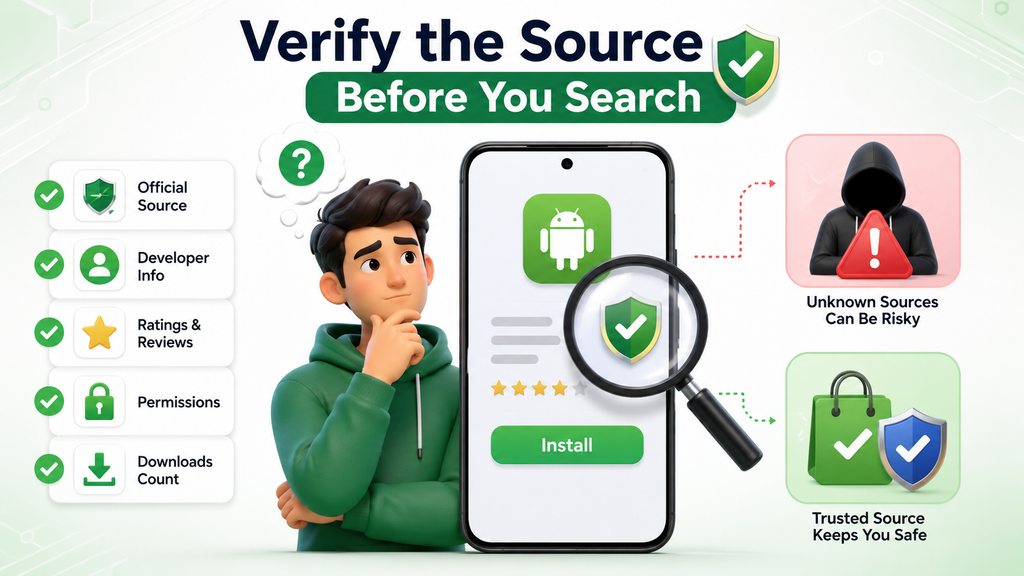
    Step 1: Verify the Source Before You Search

    Where you get an app from matters just as much as the app itself.

    Verify the Source Before You Search
    Verify the Source Before You Search

    Stick to Official Stores First

    Google Play should be your default choice for downloading Android apps. It has built-in scanning and review processes that third-party stores often lack.

    External downloads, such as APK files, are not generally recommended. But if you are downloading those, there must be a clear reason, such as an app not being available in your region or a brand offering a version not listed on the store.

    Spotting Clone or Lookalike Apps

    Fake versions of popular apps are more common than people expect. Watch for these signs before downloading:

    • The app name is almost identical but slightly misspelled
    • The logo looks close but not quite right
    • A “popular” app has surprisingly few downloads
    • The listed developer name doesn’t match the real company

    If something feels slightly off, it usually is. It’s worth checking twice.

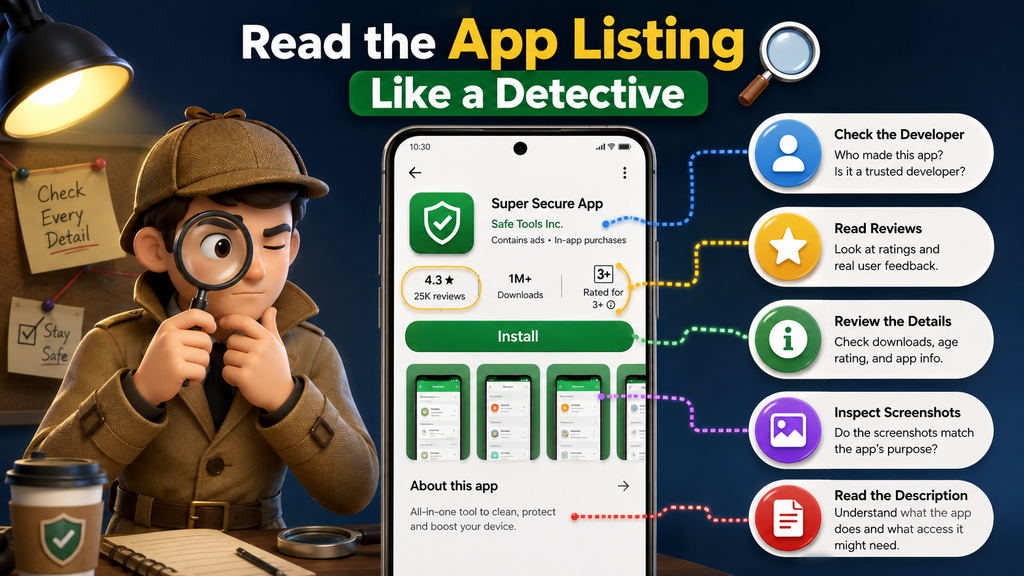
    Step 2: Read the App Listing Like a Detective

    The app’s store listing holds most of the information you need. This is the section worth spending the most time on.

    Read the App Listing Like a Detective
    Read the App Listing Like a Detective

    Check the Developer’s Name and History

    Every app has a developer and sometimes a separate vendor supplying it. Established developers with a track record of other apps are generally more trustworthy.

    If the developer name looks unfamiliar, generic, or has no other apps listed, treat that as a reason to look closer before installing.

    Look at Ratings, But Read the Recent Reviews

    A high star rating alone doesn’t tell the full story. Older reviews might praise an app that has since changed for the worse. Recent reviews are more useful because they reflect how the app behaves right now.

    One complaint about crashes or excessive ads might mean nothing much. Several recent reviews saying the same thing is a pattern worth paying attention to.

    Review the Requested Permissions

    A simple question helps here: does this app actually need what it’s asking for? A basic note-taking app asking for access to your camera, microphone, or contacts is a red flag. Permissions should match what the app is meant to do, nothing more.

    Understand the Data Safety Label and Its Limits

    Every Google Play Store listing includes a Data Safety section showing what data an app collects and whether it’s shared with others. This label is useful, but it’s self-reported by developers and not independently verified by Google.

    An app can claim it doesn’t share data while still bundling third-party advertising tools that do exactly that. Use the label as a starting point, not a guarantee.

    Check App Size and Update Frequency

    Large apps take longer to install and use more storage, which becomes especially noticeable if you’re already unsure about your phone’s storage.

    Update frequency matters too. An app that hasn’t been updated in a long time may no longer be actively maintained, which can mean unresolved bugs or security gaps.

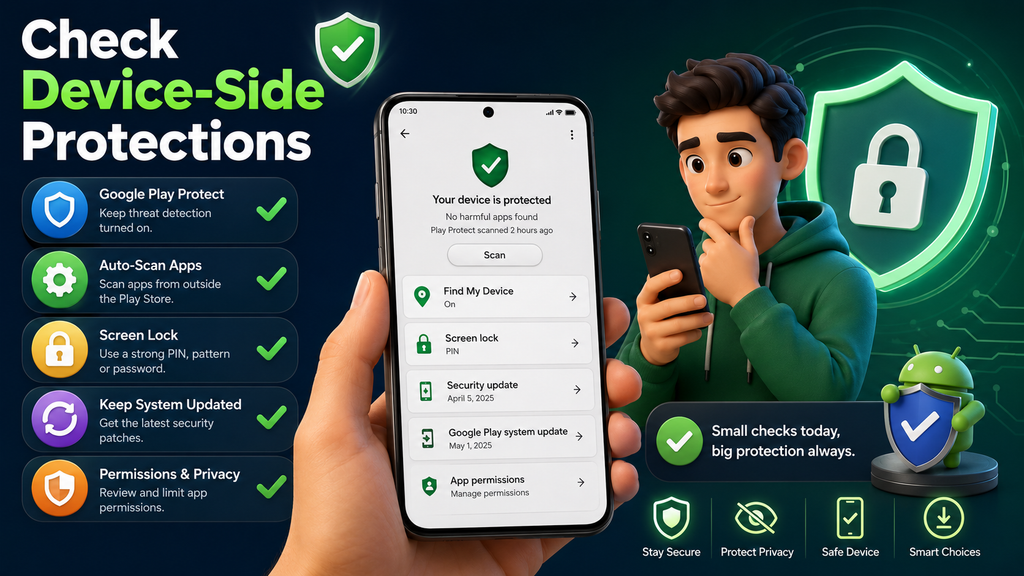
    Step 3: Check Device-Side Protections

    Your phone already has some built-in defenses. It helps to confirm they’re active before adding anything new.

    Check Device-Side Protections
    Check Device-Side Protections

    Confirm Google Play Protect Is Turned On

    Google Play Protect scans apps before and after installation, checking for harmful behavior. It works quietly in the background, but it’s worth confirming it’s switched on in your settings, especially if you’ve changed phones recently.

    Match the App’s Requirements to Your Device

    Even a safe, well-reviewed app can perform poorly if your phone doesn’t meet its requirements. Check the app’s minimum Android version and available storage space before installing. A mismatch here is often the real reason behind crashes or slowdowns, not the app itself.

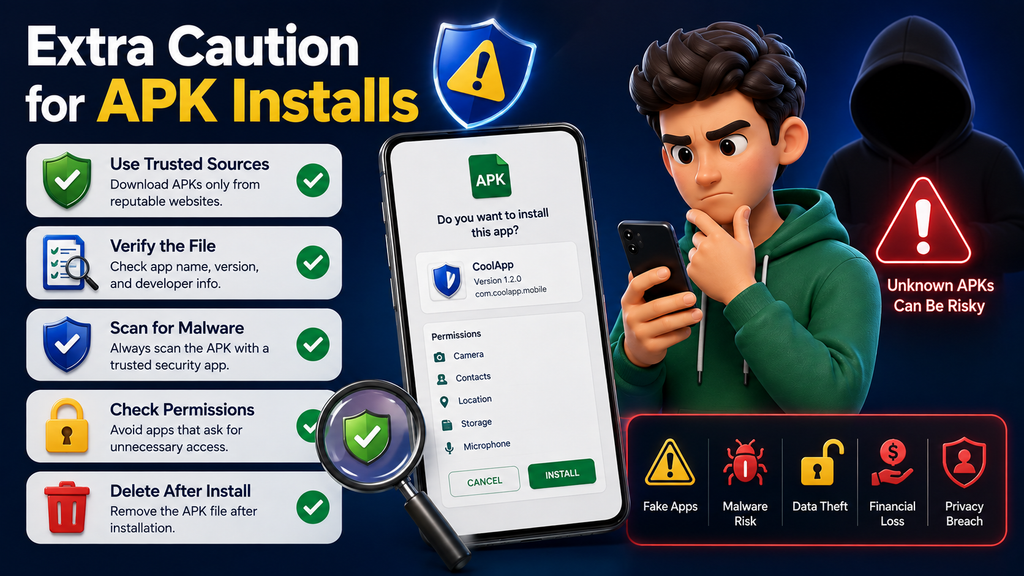
    Step 4: Extra Caution for APK Installs

    If you only install from the Play Store, you can skip this section. If you sometimes use direct APK files, these checks matter.

    Extra Caution for APK Installs
    Extra Caution for APK Installs

    Only Download APKs From Known, Verifiable Pages

    A legitimate APK page clearly states the version number and installation steps without pushing unrelated pop-ups or redirects. Avoid random file-sharing sites, since they can host outdated or altered files without warning.

    Verify File Details Before Opening

    Before installing, compare the file size and version number against what’s listed on the official source or website. A mismatch is a sign the file may have been tampered with.

    Before You Tap Install: A Quick 3-Point Gut Check

    If you only have a minute to spare, focus on these three things:

    1. Confirm the source is official or clearly verified
    2. Check that permissions match what the app is meant to do
    3. Skim recent reviews for repeated complaints

    Covering these three alone eliminates the most common risks.

    What to Watch For After Installing

    The checking doesn’t have to stop the moment you install. A couple of habits afterward make a difference too. When an app asks for notification permissions right away, it’s fine to deny it first and enable it later once you know the app is worth keeping.

    It also helps to confirm you can easily uninstall an app if it stops working well for you, since some apps request device admin access, which makes removal harder later.

    Final Words to Remember Before You Install

    Installing an app doesn’t need to be complicated, but skipping a quick check can lead to bigger problems later. A few minutes spent looking at the source, permissions, and reviews is usually enough to avoid most issues.

    Building this habit protects your data, your storage, and your overall experience with your device.

    Important Questions to Keep in Mind

    Can a safe app still cause problems on my phone?

    Yes. Even a well-reviewed app can crash or run poorly if your device doesn’t meet its storage or software requirements.

    What does the Data Safety label actually guarantee?

    Not much on its own. It’s filled out by developers and not independently checked, so it should be treated as a starting point rather than proof.

    How do I tell if an app is a fake version of a popular one?

    Look closely at the name, logo, developer, and download count. Small inconsistencies in any of these usually point to a lookalike.

    Add as Preferred on Google Follow on Google News Follow on Flipboard
    Share. Facebook Twitter Pinterest LinkedIn Tumblr Telegram Email Copy Link
    Previous ArticleRunning Out of Android Storage? Here’s What I’d Remove First
    Next Article 10 Best Android Apps for Managing Everyday Tasks
    Faisal iqbal
    • Website

    Related Posts

    How to Design an Android App in Figma: My 10-Step Workflow

    September 2, 2026

    10 Best Android Apps for Managing Everyday Tasks

    August 27, 2026
    Add A Comment
    Leave A Reply Cancel Reply

    • Quick Checklist Before Android App Installation
    • Step 1: Verify the Source Before You Search
    • Stick to Official Stores First
    • Spotting Clone or Lookalike Apps
    • Step 2: Read the App Listing Like a Detective
    • Check the Developer’s Name and History
    • Look at Ratings, But Read the Recent Reviews
    • Review the Requested Permissions
    • Understand the Data Safety Label and Its Limits
    • Check App Size and Update Frequency
    • Step 3: Check Device-Side Protections
    • Confirm Google Play Protect Is Turned On
    • Match the App’s Requirements to Your Device
    • Step 4: Extra Caution for APK Installs
    • Only Download APKs From Known, Verifiable Pages
    • Verify File Details Before Opening
    • Before You Tap Install: A Quick 3-Point Gut Check
    • What to Watch For After Installing
    • Final Words to Remember Before You Install
    • Important Questions to Keep in Mind


    Clickable Image

    My Android News brings you the latest Android news, practical guides, app recommendations, phone coverage, gaming coverage, features, tips, and useful insights to help you get more from your Android devices.

    We Tried It

    Do You Really Need a Gaming Phone for Android Games?

    September 11, 2026

    How Much Phone Storage Do You Actually Need on Android?

    September 2, 2026

    How to Design an Android App in Figma: My 10-Step Workflow

    September 2, 2026

    Subscribe to Updates

    Get the latest Android news, practical guides, app updates, and phone coverage delivered to your inbox

    © 2026 MyAndroidNews. All rights reserved - Powered by WebTech Solutions
    • Home
    • About
    • Privacy Policy
    • Contact
    • Editorial Policy
    • Terms & Conditions

    Type above and press Enter to search. Press Esc to cancel.