


The quick answer: go to Settings > Apps > pick the app > Storage > Clear cache. Don’t panic, as your logins, photos, and messages stay put.
I have never cleared an app’s cache to fix a problem. I only do it when my storage is running low, and my apps have been fine either way.
That’s odd, because most guides treat clearing cache as the first move when an app misbehaves. Maybe it is for some people. In my experience, app cache is a storage topic far more than a repair topic.
Which one it is for you decides what you should do, so I’ll cover both.
What You Are Actually Clearing
Every app saves small temporary files so it can load faster next time: thumbnails, previews, loaded pages, media chunks. That’s its cache.
It isn’t your data. It’s a shortcut the app can rebuild by itself, which is why clearing it doesn’t touch your account or your files.
Clearing App Cache on Android
I tested this on a Samsung Galaxy device, so the path below is exactly what I see.
- Open Settings.
- Tap Apps.
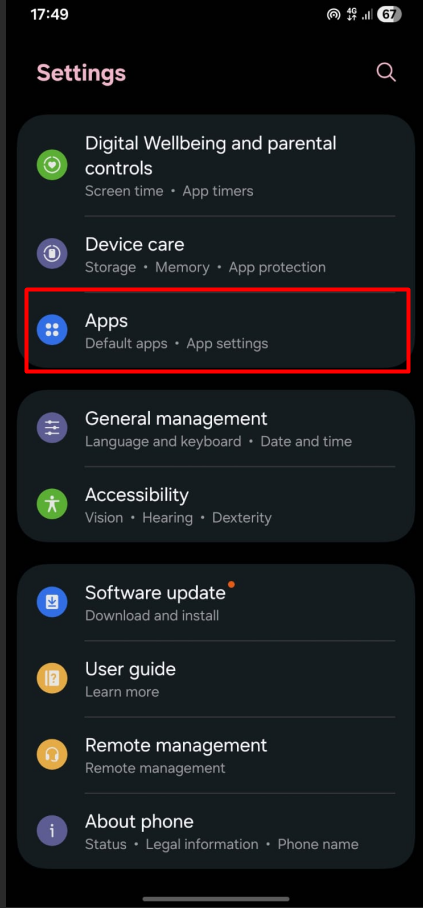
- Select the app you want to check.
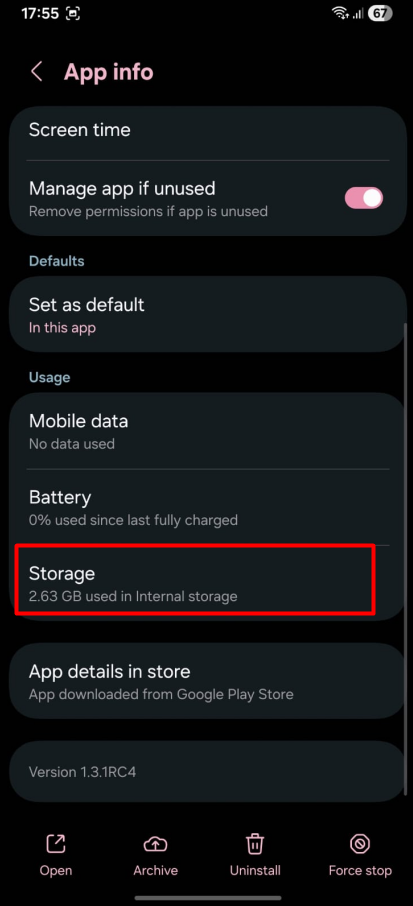
- Tap Storage or Storage & cache.
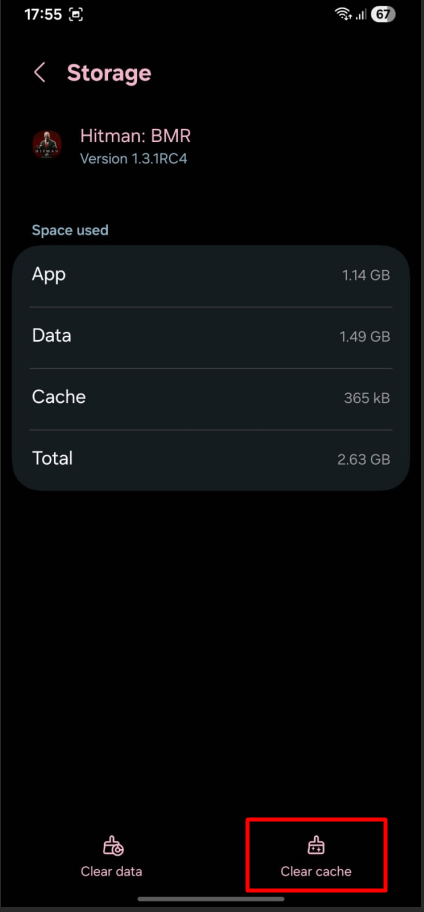
- Tap Clear cache.
You see above the Apps menu, Samsung also has Device Care, which shows what’s using your space.
Below is a quick visual guide to see the steps in action :
How to Clear App Cache on a Google Pixel
Pixel owners can follow these steps:
- Open Settings and go to Apps.
- Tap See all apps.
- Select the app you want to clear the cache for.
- Tap Storage & cache and hit Clear cache.
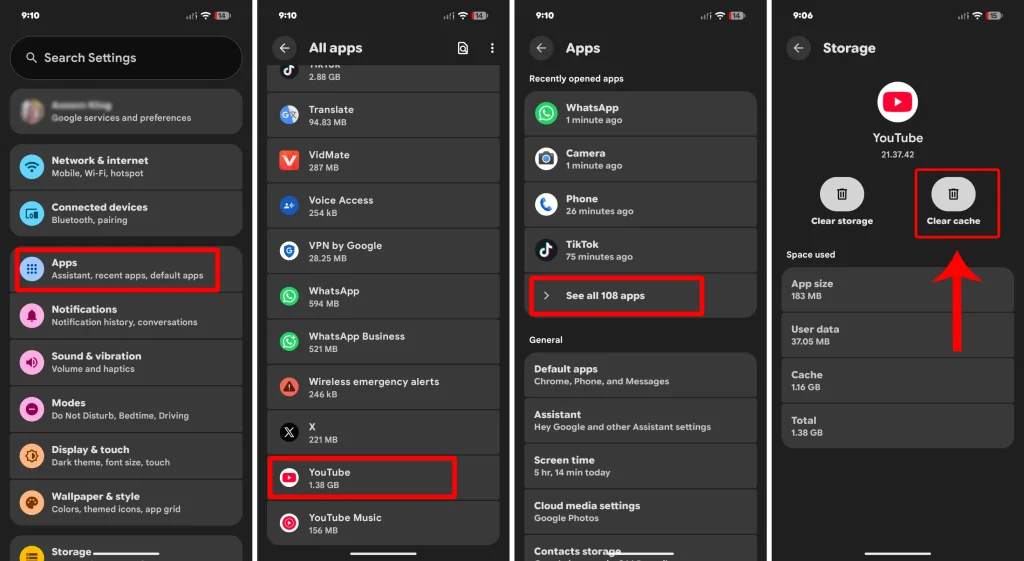
The wording differs, but the idea is the same: find the app’s storage screen and look for the cache button. And almost every Android device follows nearly the same procedure.
The Difference Between Clear Cache and Clear Data
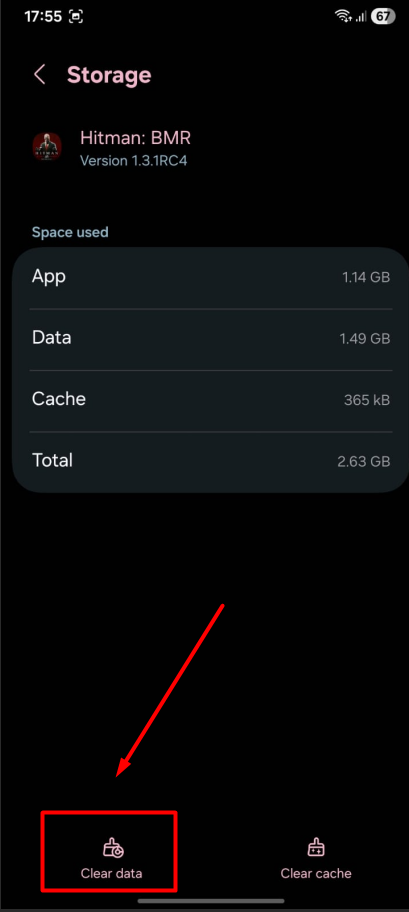
You’ll see two buttons on that screen, and they do very different things.
Clear Cache: The Safe One
Removes the temporary files the app can rebuild by itself. This is the one you want when you’re short on storage.
Clear Data: The One That Resets the App
Resets the app to how it was on day one. You get logged out, and local settings are gone. Don’t tap it unless you mean to.
What You May Wonder Before Tapping Clear Cache
These are the specific worries that come up most, each answered on its own.
Will I Get Logged Out?
Not from clearing cache. Signing you out is what Clear data does, so if you’re still logged in after clearing cache, that’s normal.
Will I Lose My WhatsApp Chats?
Not from clearing cache. WhatsApp is the one to be careful with, because Clear data can wipe local chats if you don’t have a backup. Check which button you’re pressing.
What Happens to My Offline Downloads?
Music, video, and map apps store downloads in different places, and some keep them close to the cache. If an app holds offline content you care about, check its own settings first, or clear the cache and confirm the downloads are still there.
Remember the One-Tap “Clear All Cache” Button? It’s Gone
If you’ve been on Android for a long time, you may remember this. You’d open storage settings, tap one button, and the cache of every app on your phone was gone. No digging through apps one by one.
If you’re newer to Android, that probably sounds made up. It wasn’t. It was a real feature, and today you won’t find it on most phones.
When Did It Disappear?
Google removed that universal cached-data button from stock Android around Android 8.0 Oreo as Sony Community notes. That’s earlier than a lot of people think, which is why it’s easy to misremember.
If you remember using a clear-all option on Android 10 or 11, it is likely that Your phone brand kept its own version.
Samsung, Xiaomi, and LG heavily customize Android, and many built their own cleaning tools into the system, like Samsung’s Device Care. Those tools carried on after stock Android dropped the button.
So now it’s app by app. That’s less annoying than it sounds, because you don’t need to clean every app. You only need the hoarders.
Which Apps Hoard the Most Cache
Most apps barely keep any. The ones that pile it up are the ones you scroll, stream or browse in: Instagram, TikTok, Facebook, Chrome, YouTube, Snapchat and Telegram. They keep previews, thumbnails and loaded media so the next scroll feels instant.
Why Some Apps Never Hit Zero
Some apps drop to 0 B after you clear them, and others don’t. Instagram, on my phone, never goes to zero.
It starts rebuilding the moment you reopen it, so a small number reappears almost immediately. If you still see a figure after clearing, nothing is broken. The app just started refilling.
Cache Myths I Wish People Would Stop Repeating
A lot of what gets said about app cache is half true. These are the ones I see most.
Myth: Cache Is Just Junk
It isn’t. Cache exists to make the app faster, so clearing it is a trade-off, not a cleanup. If your goal is maximizing the life of your phone, clearing cache constantly won’t magically extend its life—it just trades temporary storage gains for slightly slower app loads.
What You Get Back When You Clear It
Storage, right away. That’s the whole reason I do it.
What It Costs You
The app may open a bit slower the first time and reload things it had saved. The cache also starts growing again as you use the app.
That’s why I clear it when storage is low, not on a schedule.
Myth: Clearing Cache Makes Apps Faster
Mostly not. Cache is what makes the app fast, so right after clearing it can feel a little slower, as Google Android Help notes. It only helps when corrupted cache files were the problem, and that’s the rare case.
My Verdict: When to Clear and When to Skip
Clear app cache when you need the storage, and leave it alone the rest of the time. Here’s the short version:
- Storage is low: clear the cache of the biggest hoarders (usually social and video apps) and skip the small ones.
- One app is acting up: restart the app and then your phone. If that doesn’t fix it, clear the cache. And then update the app if it still causes trouble.
- Everything is running fine: leave it. Cache makes your apps faster, and clearing it on a schedule just makes them rebuild what you removed.
- Still out of space afterward: cache was never the main problem. Check your photos, videos, Downloads folder, and WhatsApp or Telegram media next.
- Know your buttons: Clear cache is the safe one. Clear data resets the app and logs you out.
That’s how I handle it, and it’s worked for me. Yours might look different, and that’s fine.
