


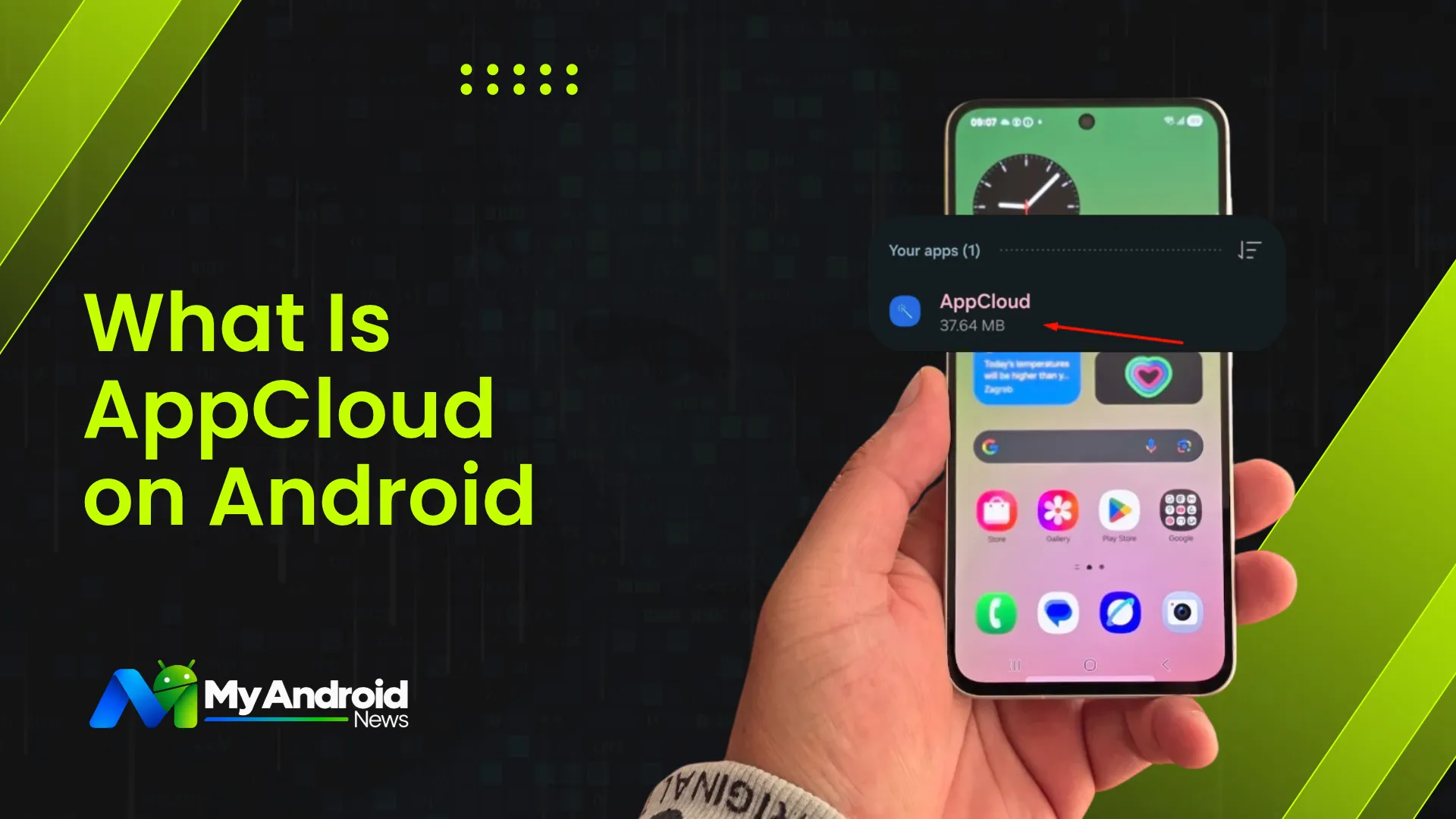
AppCloud is a preinstalled Android service that provides app recommendations on select devices rather than every Android phone.
The service can be included by a phone maker, carrier, or software provider as part of the phone’s preloaded software.
AppCloud is mostly found on mid-range and entry-level Galaxy A, F, and M series models depending on regional software, though it can occasionally appear on newer flagships as well under specific carrier builds.
To remove it, you can check its App info page for an Uninstall option. If that option is unavailable, your phone may let you Disable AppCloud instead.
Why Is AppCloud on My Samsung Phone?
AppCloud is on your Samsung phone through a partnership with Unity’s Aura platform (formerly ironSource), which lets Samsung deliver targeted app recommendations during device setup or system updates.
Samsung’s Knox Enterprise documentation confirms two primary package names associated with AppCloud on Galaxy devices:
- com.aura.oobe.samsung (used in South Asia: India, Nepal, Sri Lanka, and Bangladesh)
- com.aura.oobe.samsung.gl (used globally in other markets)
Note: AppCloud is strictly for preinstalled app recommendations, while Samsung Cloud handles user data backups, device syncing, and storage management, which can be helpful if you are running out of storage space.
What Does AppCloud Do?
AppCloud functions as a sponsored app-discovery engine. It prompts users to select and install third-party apps, such as popular games, social platforms, and utilities, during initial device setup or following major software updates.
While the recommended apps are generally legitimate titles available on the Google Play Store or Samsung Galaxy Store, AppCloud serves as an independent promotional channel for developers paying to reach new users
On supported models, AppCloud continues to run as a background service, though it is not required for normal Android performance or phone functionality.
Is AppCloud a Virus?
No, Samsung’s AppCloud is not a virus or malware, but an official preinstalled system component powered by Unity’s Aura platform.
Because it triggers unexpected pop-ups, push notifications, and background processes, users often mistake it for malware. Technically, it is classified as preinstalled bloatware, a system-level promotional software.
While concerns about its background activity and privacy practices are valid, having AppCloud on your Galaxy device does not mean your phone is compromised. Disabling or removing it is simply a matter of keeping your device clutter-free.
Can You Remove AppCloud From Android?
Yes, but the exact removal method depends on your device, region, and carrier software.
Because Samsung treats AppCloud as a system component, Android may grey out or completely hide the standard Uninstall button on certain models.
If a full uninstallation isn’t supported out of the box, you can still disable its background activity, silence its alerts, or hide the app from your launcher using the methods below.
How to Remove AppCloud on Samsung
The following steps were tested on a Samsung Galaxy A5, which provides an Uninstall option for AppCloud.
- Open Settings and go to Apps to open the list of installed apps.
- Search for AppCloud and tap it to open its App info page.
- Tap Uninstall and confirm the removal.
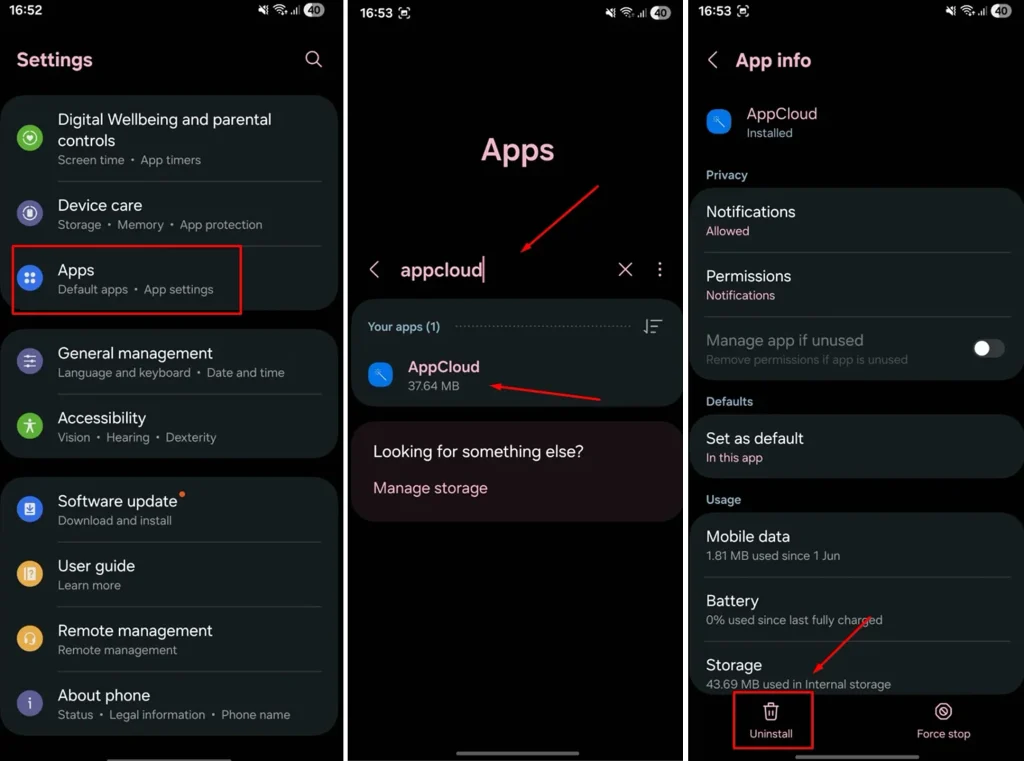
If your Samsung phone does not show an Uninstall option, look for Disable instead. Tap Disable and confirm to stop AppCloud from running. The exact options can vary by Samsung model, region, and software version.
What If There Is No Disable Option?
If neither Uninstall nor Disable is available, you cannot completely remove AppCloud from your device. However, you can use these workarounds to stop its notifications and hide it from view so it stops annoying you:
Turn off notifications
- Open Settings and tap Notifications.
- Now, go to App notifications.
- Search for AppCloud and turn off notifications if the option is available.
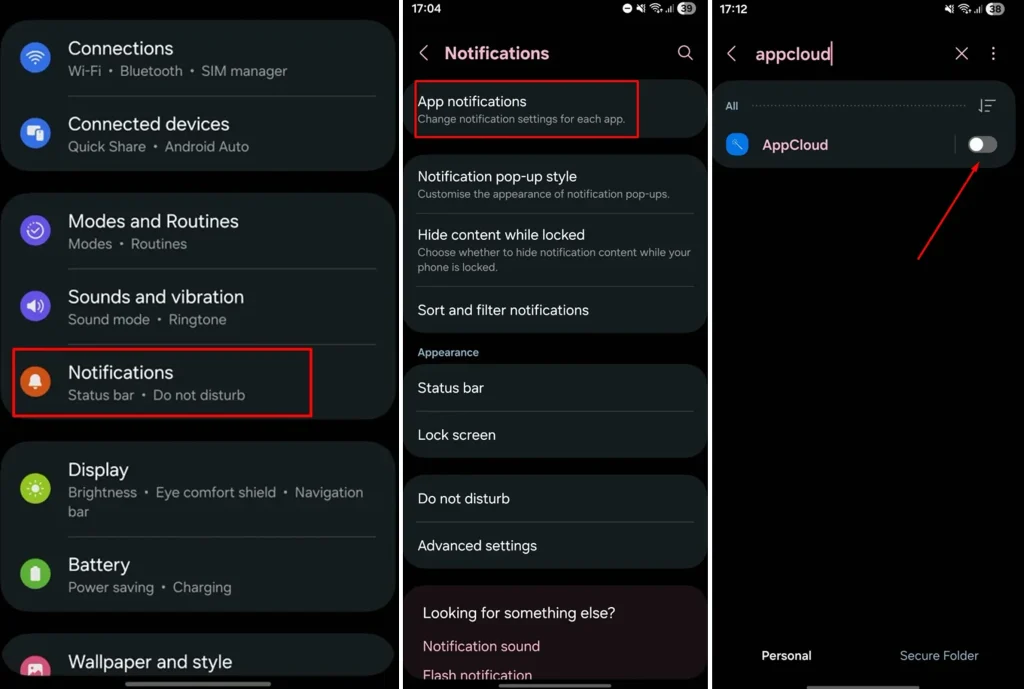
Pro Tip: If the main Allow notifications switch is grayed out, tap Notification categories at the bottom of that same notifications menu. From there, you can manually switch off individual categories like Promotions or System Alerts to block pop-up ads.
Hide the app
To hide the AppCloud icon on a Samsung Galaxy device, go to Settings > Home screen > Hide apps on Home and Apps screens. Select AppCloud from the list and tap Done at the bottom to apply changes.
This removes the icon from your launcher screens without affecting its underlying system installation.
Check after a software update
If AppCloud appeared following a recent software update, check its settings again after installation. New firmware versions often update system permissions and available control options.
While AppCloud may be a preinstalled system component, any third-party software you download yourself requires careful evaluation. Following a few key security checks, like reviewing app permissions and developer history, ensures your phone stays fast, private, and clutter-free.
Using ADB (For Advanced Users Only)
If you are comfortable using command-line tools, you can debloat Samsung packages via ADB
to safely remove com.aura.oobe.samsung or com.aura.oobe.samsung.gl for the primary user without root.
While AppCloud comes preinstalled on select Galaxy devices, keeping it running is entirely optional.
If you can’t uninstall or disable it directly on your regional software build, silencing its notification channels and hiding the app icon is the simplest way to block unwanted pop-ups without compromising system performance.
