


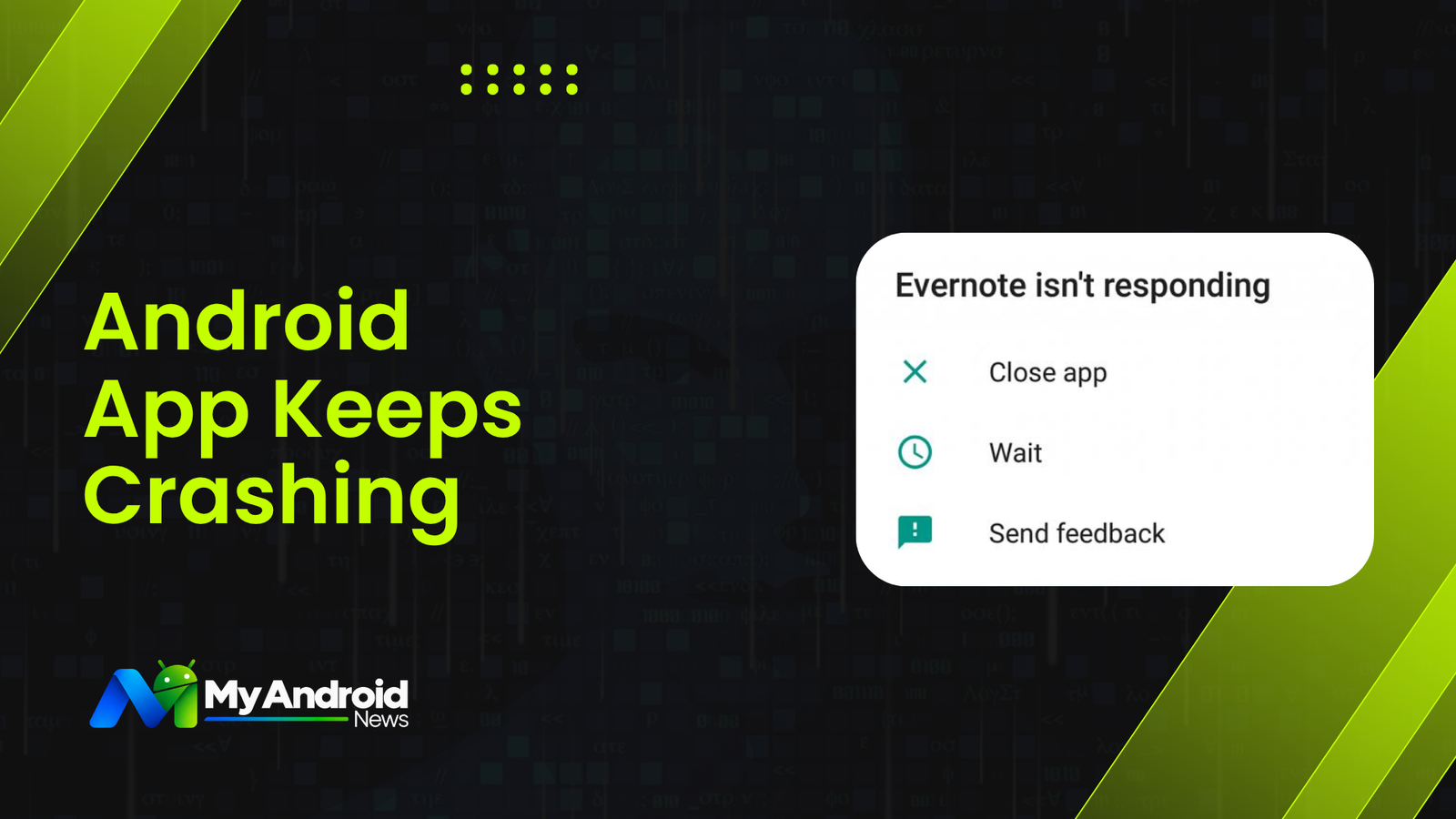
Android apps depend on system stability and background memory to run smoothly. When an app encounters corrupted data or system conflicts, it can suddenly freeze, stop responding, or force-close on its own.
To resolve this, start by restarting the app, your phone, updating software, or clearing cached files. If the crashes continue, you can move on to force-stopping or reinstalling the app.
In this guide, I’ll show you some effective methods to fix unresponsive apps on Android.
1. Close the App and Open It Again
If an app has crashed once, reopen it before changing any settings.
A one-time crash can happen without there being an ongoing problem. If the same app crashes again, continue with the steps below.
2. Restart Your Android Phone
On most Android phones, press and hold the power button and choose Restart, though the exact method can vary depending on the phone.
After the phone starts again, open the same app to verify if the app runs normally.
3. Check for an App Update
Updating your app installs critical bug fixes for known software crashes. To update the app:
- Open the Google Play Store.
- Tap your profile picture.
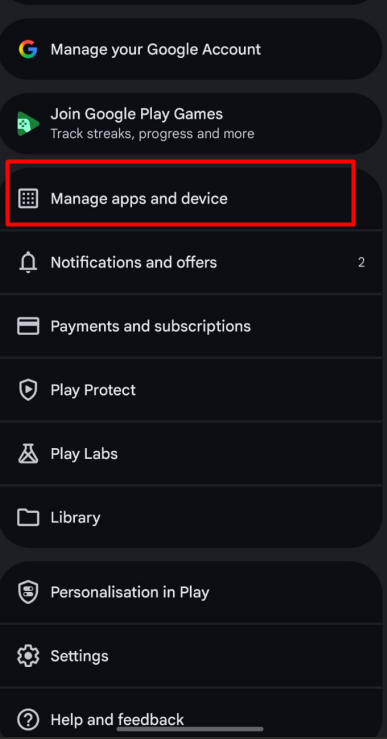
- Select Manage apps & device.
- Check Updates available.
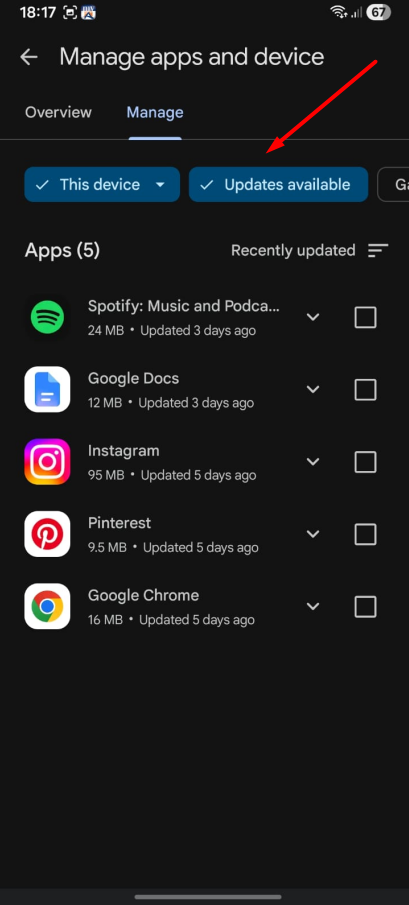
- Find the crashing app and tap Update if one is available.
Also check for an Android OS update by going to Settings > System > System update and ensuring your system software supports the app’s latest requirements.
4. Clear the App’s Cache
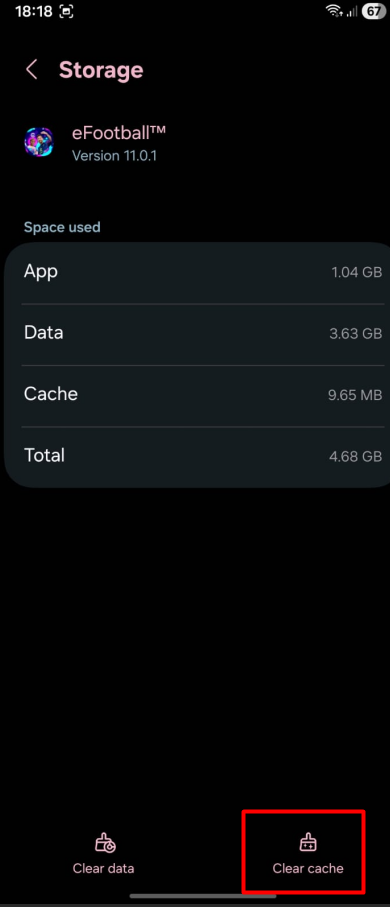
Clearing the cache removes damaged or outdated temporary files that can cause the app to fail, leaving the app data and settings untouched.
- Open Settings.
- Tap Apps.
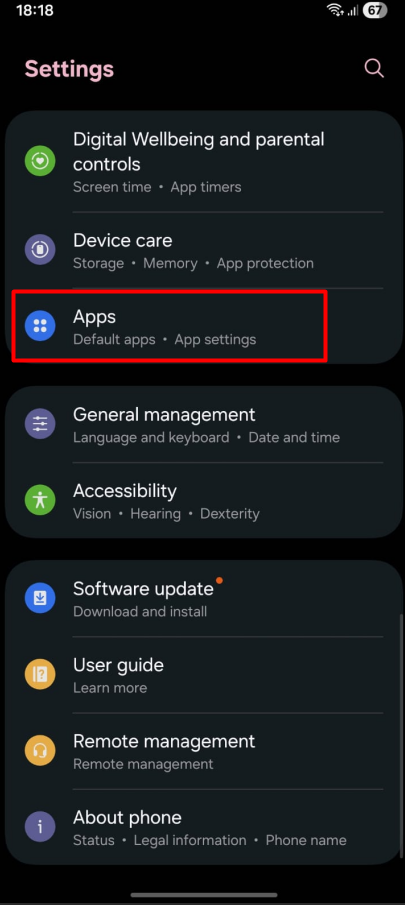
- Select the app that keeps crashing.
- Tap Storage or Storage & cache.
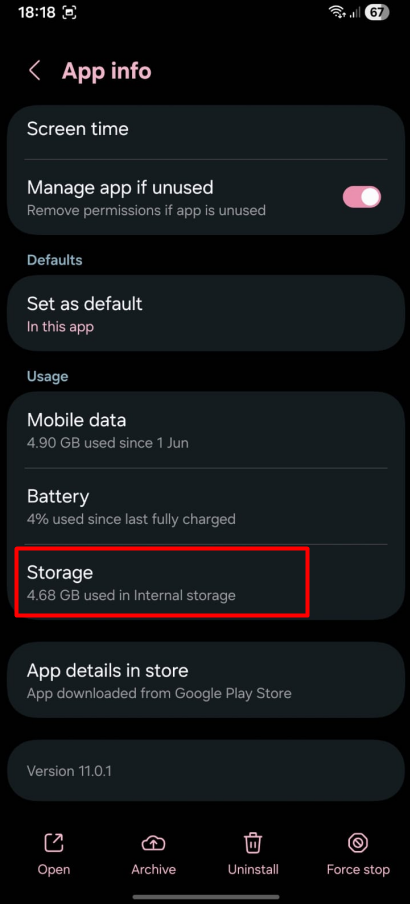
- Tap Clear cache.
5. Force Stop the App
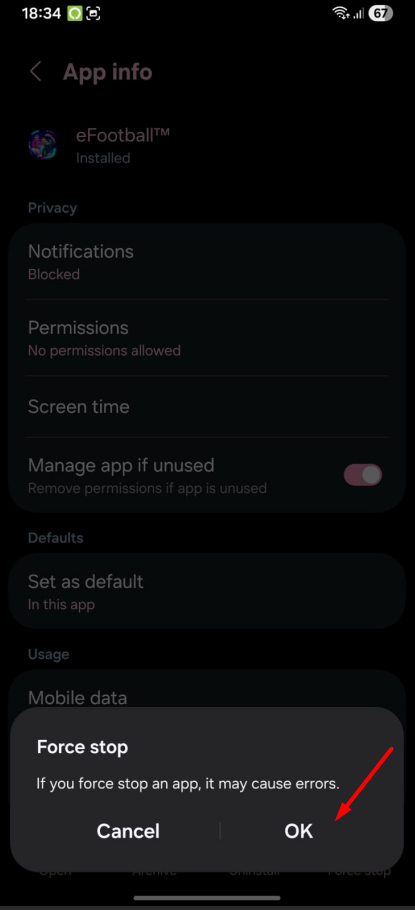
Force stopping an app completely shuts down its active background tasks to clear temporary crashes.
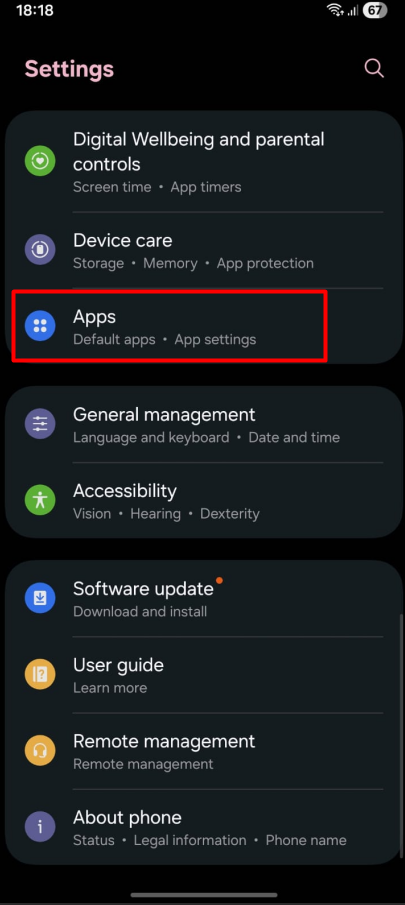
- Open Settings.
- Tap Apps.
- Select the app that keeps crashing.
- Tap Force stop.
- Tap OK or Force stop to confirm if prompted.
6. Check Your Phone’s Available Storage
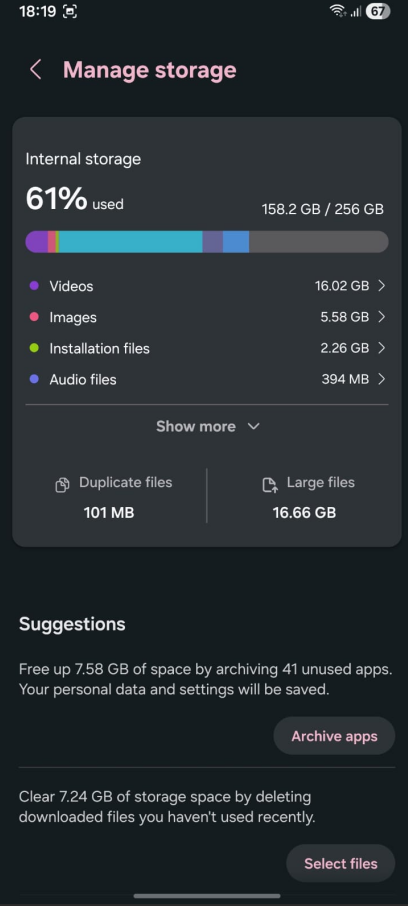
Insufficient internal storage, specifically running below 10% free space, prevents apps from saving temporary files and causes frequent crashes.
Go to Settings > Storage and check how much free space remains.
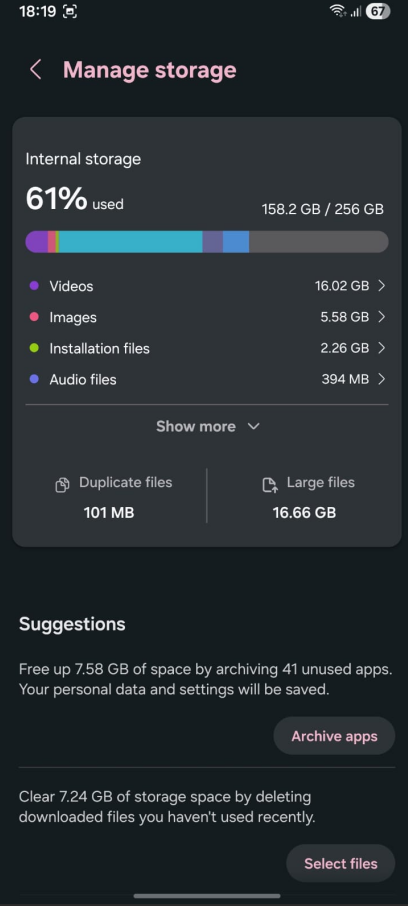
Relaunch the app and see if the app runs normally after freeing up space.
7. Reinstall the App
Reinstalling replaces corrupted files with a fresh build if earlier troubleshooting has failed.
Note: Uninstalling erases local app data, so make sure your account is backed up or synced first.
Simply delete the app, download it again from the Play Store, and sign back in, this clean start almost always takes care of whatever was breaking things.
What If Several Android Apps Keep Crashing?
A system-wide issue or a newly installed third-party app is likely to blame when several apps crash at once.
Booting into Safe Mode temporarily disables all downloaded apps so you can isolate the cause. If the crashing stops while in Safe Mode, a recently installed app is triggering the issue and needs to be uninstalled.
How to Boot Into Safe Mode on Android
To boot into Safe Mode, turn off the phone. Then press and hold Power until you see the manufacturer logo on the screen, then release it and immediately hold Volume Down until the phone finishes booting into Safe Mode.
Because entering Safe Mode differs between manufacturers, follow the instructions for your specific Samsung, Pixel, Nothing, or other Android device rather than assuming the same button sequence works everywhere.
Pro Tip: To exit Safe Mode, simply restart your phone. If apps remain grayed out after rebooting, swipe down the notification panel, tap the “Safe Mode is ON” banner, and confirm to exit.
Is Battery Drain Happening Too?
App crashes and battery drain are two separate issues.
If an app stays open but consumes the battery quickly, check your device’s battery usage settings to identify power-hungry apps before tweaking unrelated device settings.
You can also follow our guide on how to prevent apps from running in the background to limit unnecessary background activity and reduce its impact on battery life and system resources.
When Should You Contact the App Developer?
If all troubleshooting fails for a single app, the issue is on the developer’s end, especially if the crashes started after a recent update.
According to Google’s Android support guidance, contacting the app developer is the official recommended step when problems persist with an individual app.
An app that keeps crashing is usually pointing to a specific problem, not a failing phone. Start with the simplest fixes, then move to deeper troubleshooting only if the crashes continue.
