



Developing an Android app involves more than writing code and adding features. Mistakes in architecture, testing, security, permissions, or performance can lead to crashes, poor user experiences, and Play Store issues.
Many of these problems can be prevented when they are identified early. Following the best Android app development tips can help avoid common issues and build an app that is stable, secure, responsive, and reliable across different devices and Android versions.
Android App Development Mistakes: Quick Checklist
- Building and testing feature-by-feature, not all at once
- Logic moved out of Activities into ViewModels and reusable components
- Layouts tested across screen sizes, tablets, and aspect ratios
- Heavy operations kept off the main thread
- Lifecycle and configuration changes handled properly
- No sensitive data or credentials are hardcoded anywhere
- Only the minimum necessary permissions are requested
- Errors, empty states, and offline conditions are all handled gracefully
- Tested on real, low-end, and multiple Android version devices
- Startup time, battery usage, and memory consumption were checked
- Internal testing, beta testing, and crash monitoring are in place before release
1. Building the Entire App Before Testing
It is tempting to build the entire app and test everything at the end, especially when you want to move quickly. The problem is that bugs start piling up, and it becomes much harder to figure out where they came from.
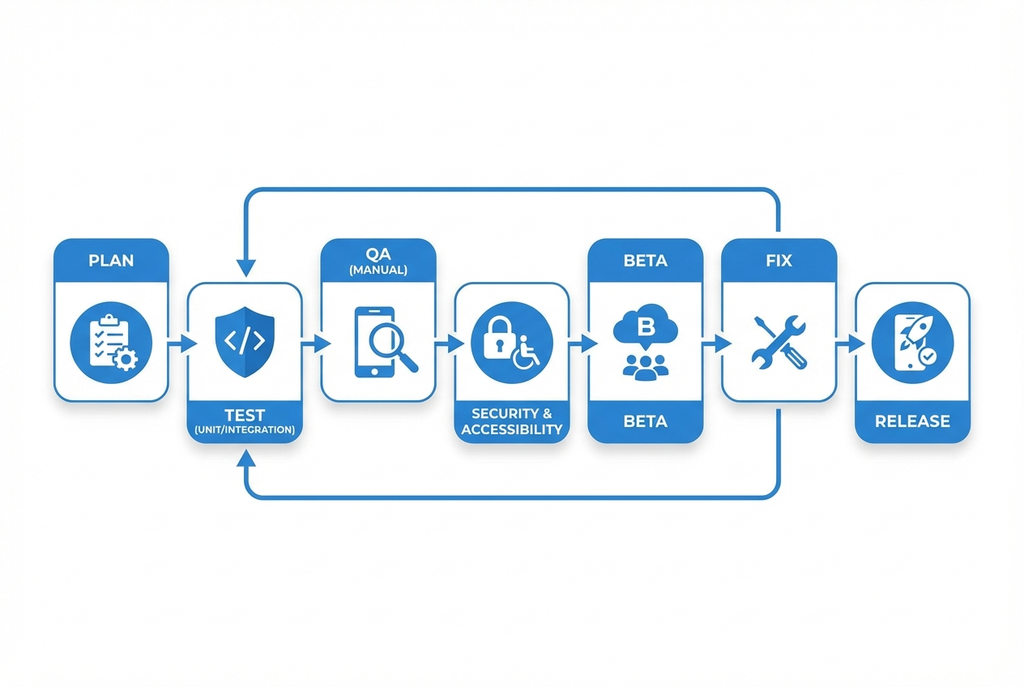
A better approach is to build and test one feature at a time. Once a feature works properly, move to the next one. Frequent testing keeps problems manageable and makes them much easier to fix while you still remember what changed.
2. Putting Too Much Code in Activities
An Activity can start small and gradually turn into a place where everything happens. UI code, business logic, data handling, and other tasks all end up in the same class. This “fat Activity” approach may work early on, but it quickly becomes difficult to maintain.

Moving logic into ViewModels and reusable components keeps the code more organized. The Activity can then focus on coordinating the interface instead of trying to handle every part of the app.
3. Ignoring Different Screen Sizes
An interface that looks perfect on your main testing phone may look completely different on another device. Fixed dimensions can cause text to overflow, buttons to move out of place, or layouts to look awkward on larger screens.

Responsive layouts help the interface adjust to different screen sizes. This should be considered from the app design stage, with layouts checked across tablets, different aspect ratios, and both portrait and landscape modes.
4. Blocking the Main Thread
One of the easiest ways to make an Android app feel slow is to keep heavy work on the main thread. Tasks such as network requests and database operations can take time, and making the UI wait for them can leave the app frozen or unresponsive.
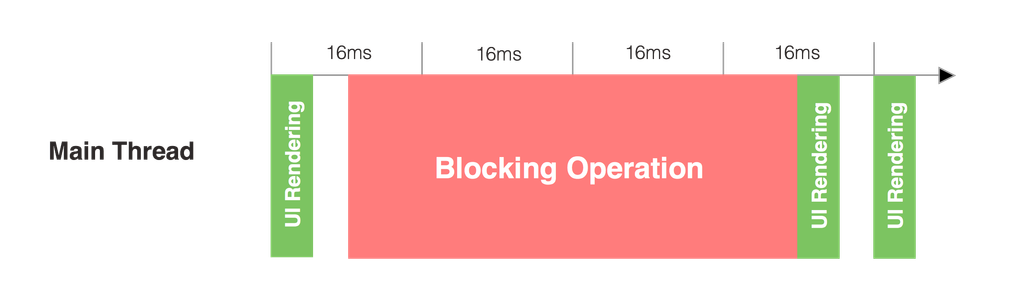
Background threads keep that work away from the interface, allowing the main thread to focus on what the user sees and interacts with. This small change can make a noticeable difference in how responsive an app feels.
5. Ignoring App Lifecycle
Android does not always keep an Activity exactly as it is. A screen can be recreated after a rotation, language change, or other configuration change, and anything stored only inside the Activity can be lost. This often leads to strange bugs that are difficult to reproduce.
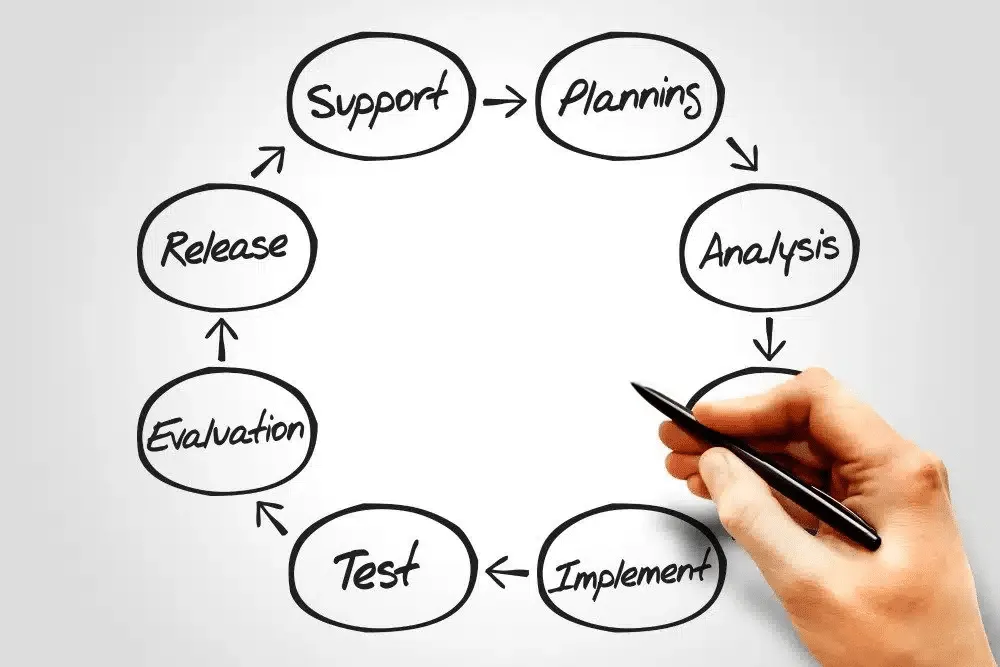
Understanding the Activity lifecycle and keeping important UI state in a ViewModel can prevent many of these problems. It also helps to consider what should happen when the app moves between the background and foreground.
6. Storing Sensitive Data Insecurely
It can be convenient to put an API key or password directly into the code when you are trying to get something working quickly. The problem is that credentials stored this way can eventually be exposed, especially if the app is distributed publicly.
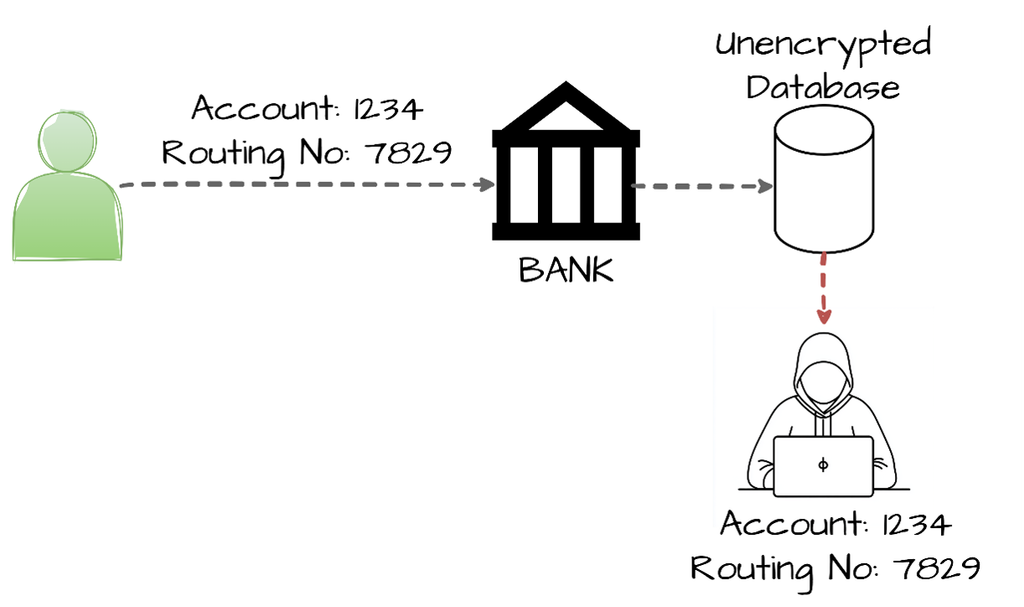
Sensitive information should never be hardcoded into the source code. For small amounts of sensitive local data, encrypted preferences can provide an extra layer of protection.
Secure storage methods provide a safer place for secrets, and any credential that has already been exposed should be treated as compromised and replaced.
7. Asking for Too Many Permissions
Users tend to notice when an app asks for access that does not seem necessary. Asking for too many permissions can make an app look intrusive and may cause people to question why those permissions are needed in the first place.

It is better to request only what the app actually needs and follow Android’s permission guidelines by asking for access when a feature requires it. As the app changes over time, reviewing its permissions can also help remove requests that are no longer relevant.
8. Not Handling Errors and Offline Conditions
There could be times when something doesn’t go as planned. An API may fail, the user may lose their internet connection, or a request may simply return no data. If the app has no response for these situations, users may be left staring at a blank screen or wondering whether something is broken.

Clear error messages, useful empty states, and a retry option can make these situations much less frustrating. The goal is not to prevent every failure, but to make sure the app knows how to respond when one happens.
9. Skipping Real-Device Testing
An emulator is useful for everyday development, but it cannot show you everything that happens on real hardware. An app that performs well on a powerful development machine may struggle on an older or low-end phone.
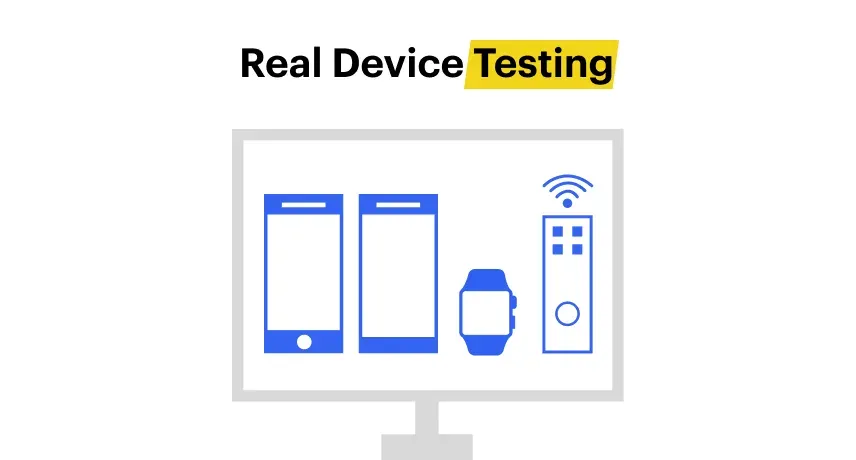
Differences between Android versions can also reveal compatibility problems that are easy to miss during development.
Testing on several real devices gives you a much better idea of how the app will behave for actual users. If you do not have access to a wide range of devices, Firebase Test Lab can help you test the app across different physical and virtual Android devices.
10. Ignoring App Performance
Performance problems are not always obvious during development. An app might start reasonably quickly but become sluggish after longer use, consume too much memory, or drain the battery because of unnecessary background work.
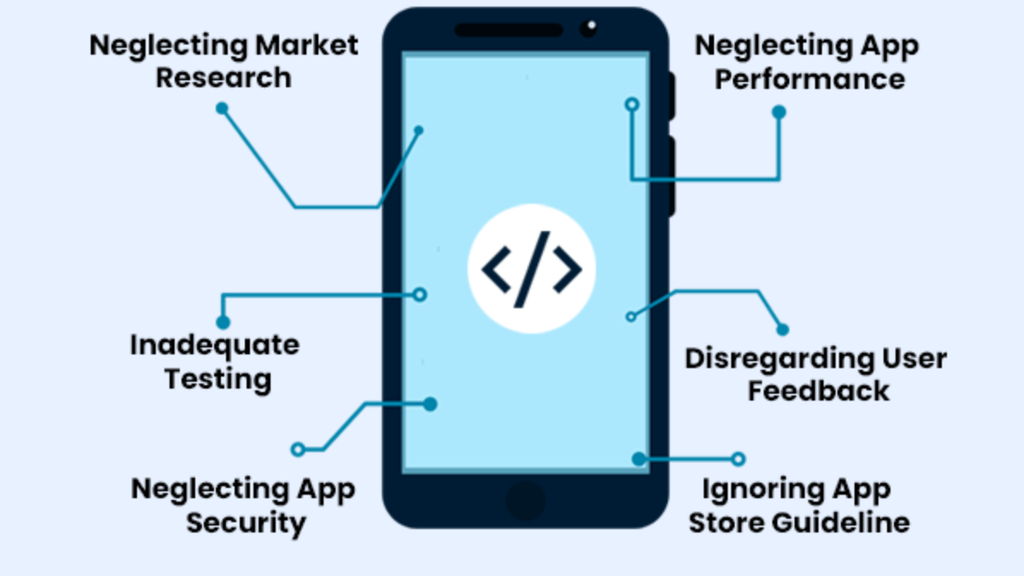
These small issues can significantly affect the overall user experience. Monitoring startup time, memory consumption, battery usage, and background processes helps catch performance problems before users notice them.
11. Releasing Without Proper Testing
Getting an app ready for release is not the same as getting it ready for real users. Even after development and basic testing, real users can uncover problems that the development team never encountered.

Internal testing can catch obvious issues first, while beta testing provides feedback from people using the app in different ways and on different devices.
Firebase Test Lab can also help identify device-specific issues before release, giving you more problems to fix before the app reaches the Play Store. Crash monitoring then gives you a way to spot problems that appear after launch, rather than waiting for users to report them through reviews.
What to Know Before You Develop Android Apps
None of these mistakes are complicated to fix, as most of them just require catching them early instead of after release. I still double-check this exact list on every app I ship, because even after years of doing this, it’s easy to let one of these slip through under deadline pressure.
My recommendation: keep this checklist somewhere you’ll actually see it before every release, not just the first time you read this article. That one habit alone has saved me from shipping avoidable bugs more times than I can count.
People Also Ask
Blocking the main thread with heavy operations. It’s easy to overlook in a rush, and I still catch myself needing to double-check for it, even on projects where I know better.
Use a ViewModel to hold your UI state. It’s built to survive configuration changes like rotation, so data isn’t lost the way it would be if it were stored directly in the Activity.
Start by checking startup time, memory usage, battery consumption, and background processes. Testing on real and low-end devices can also reveal performance problems that may not appear during development.
