


Writing on a phone used to feel impossible for me. Typing long-form content on a small screen, switching between apps, and staying organized were exhausting. Once I built a proper AI workflow using Android apps, everything changed.
HubSpot’s last year’s blogging survey found that 38% of bloggers use it for outlining, 37% for first drafts, and 43% for editing and proofreading.
Now I can research, outline, write, edit, and publish content entirely from my phone. In this article, I am sharing the exact mobile workflow I use, step by step, so you can set up something similar and make AI writing on Android actually practical for yourself.
Step 1. Selection of Topic
I always start by picking a topic with real search demand that matches what I want to write about. On Android, I use apps like Google Keep or a simple notes app to jot down topic ideas as they come to me throughout the day.
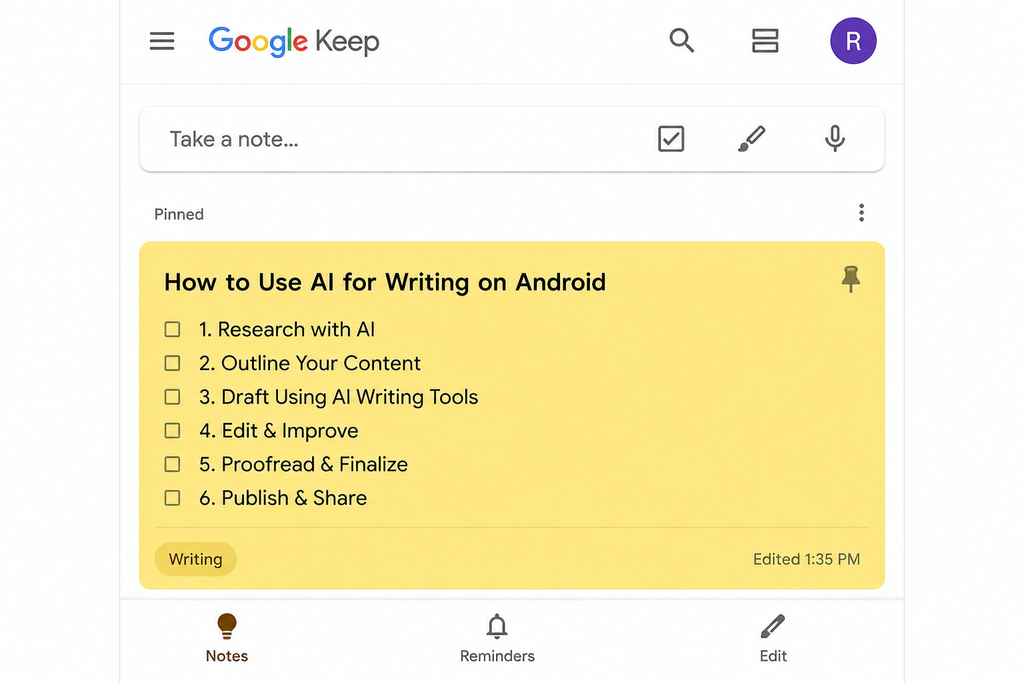
Before finalizing a topic, I ask myself:
- Does this topic solve a real problem for readers?
- Is there enough search interest to make it worth writing?
- Can I add something unique that the existing content is missing?
Once I settle on an idea, I move to research.
Step 2. Research with Google
This is where I spend a good chunk of my time. I open Google on my Android browser and search for the exact keyword or topic I plan to write about.
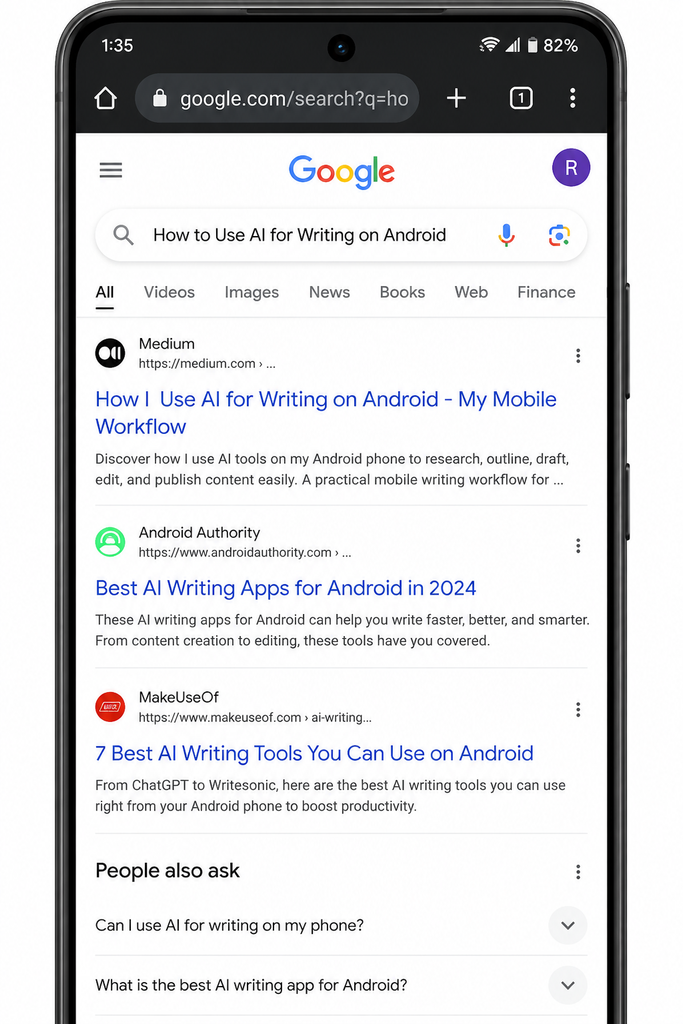
I take quick notes directly in Google Keep as I read, copying down headings or points I want to include later. Open separate tabs and go through each one.
While reading, I keep focus on a few things:
- What subtopics or headings keep repeating across top articles
- What questions are people asking in the “People Also Ask” box
- What information seems outdated or missing
- How competitors are structuring their content
I take quick notes directly in Google Keep as I read, copying down headings or points I want to include later.
This step alone shapes most of my content structure before I even open an AI tool. If you follow this same approach, you will notice your outlines become much easier to build.
Step 3. Creating a Topic Outline with ChatGPT
Once my research is done, I open the ChatGPT app and paste in my notes along with the topic. I ask it to build a structured outline based on the research points I gathered.
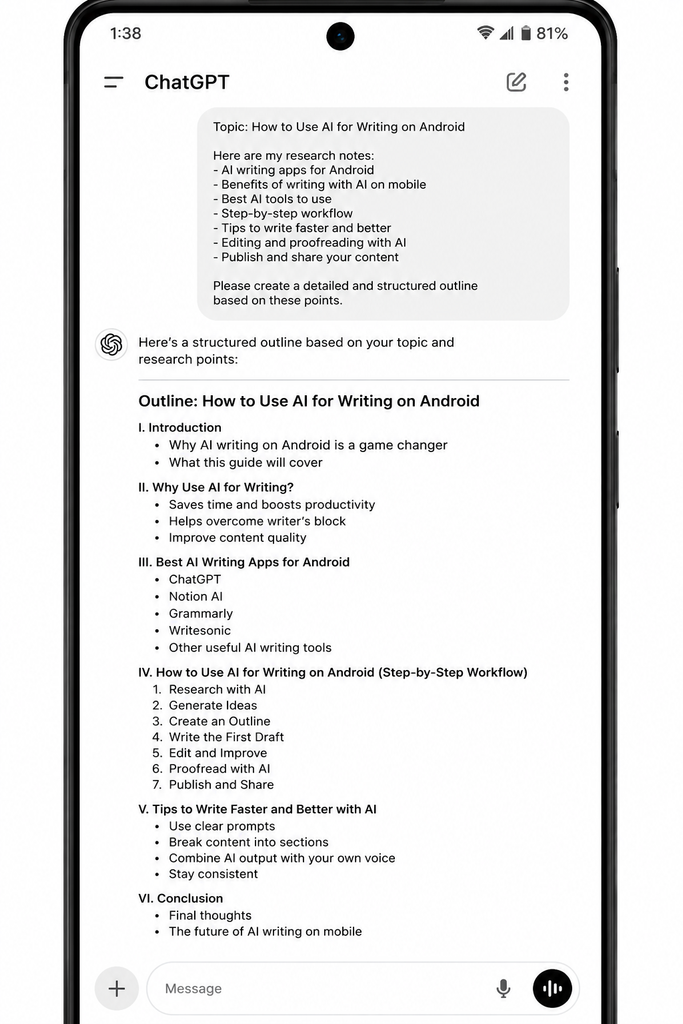
I usually prompt it with something like “create a detailed outline for this topic using these research points” and then paste my notes.
I use this prompt style because ChatGPT is quick at organizing scattered ideas into a logical flow of headings and subheadings, which saves me a lot of manual structuring time.
I review the outline and adjust the order of headings if something feels off before locking in the structure..
Step 4. Writing with Claude
For the actual writing, I switch over to the Claude app. I use Claude to help turn my outline and notes into a working draft, usually one section at a time. I then rewrite, expand, or remove parts based on my research and experience while keeping my tone and instructions in mind.
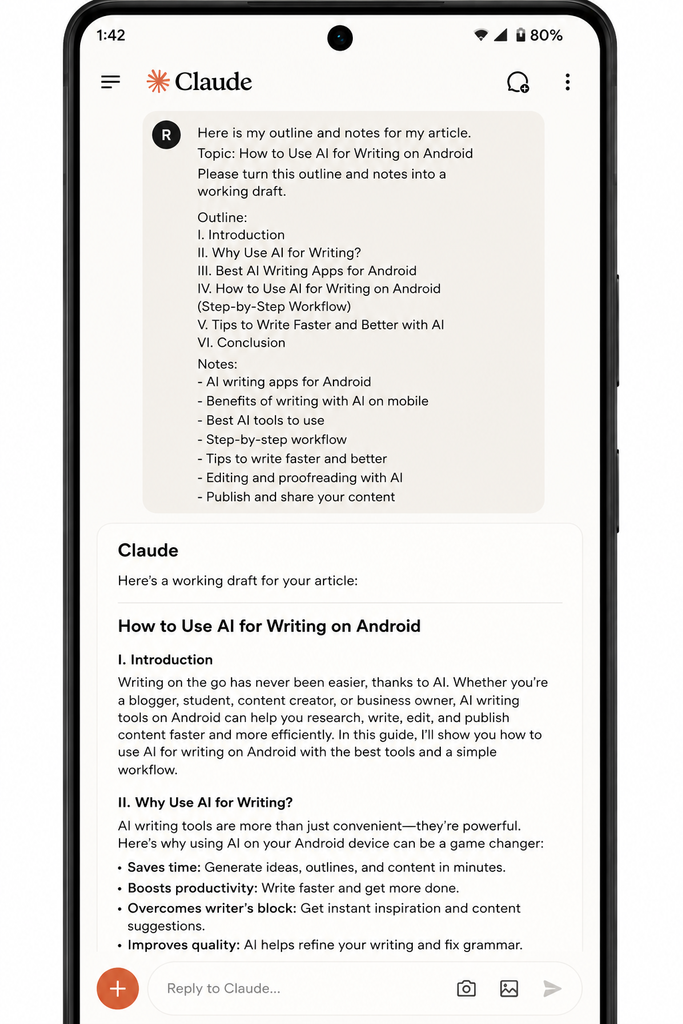
I like using Claude for this stage because the output tends to sound more natural and less robotic compared to other tools. I give clear instructions about tone, perspective, and length so the draft comes out closer to what I actually need.
Since I am working on a phone, I write each section separately instead of asking for the entire article at once. This keeps the responses manageable for me to read and edit on a small screen.
Note: Is Claude better than ChatGPT for writing content?
This is a very common concern that writers stay confused in, whether they should use ChatGPT or Claude for writing content. The simple answer is that it depends on the task rather than one being universally better. I personally use ChatGPT for outlining and Claude for actual writing, since I find its output more natural.
Step 5. Proofreading Content
After Claude finishes the draft, I do a manual read-through directly in the app. I am checking for:
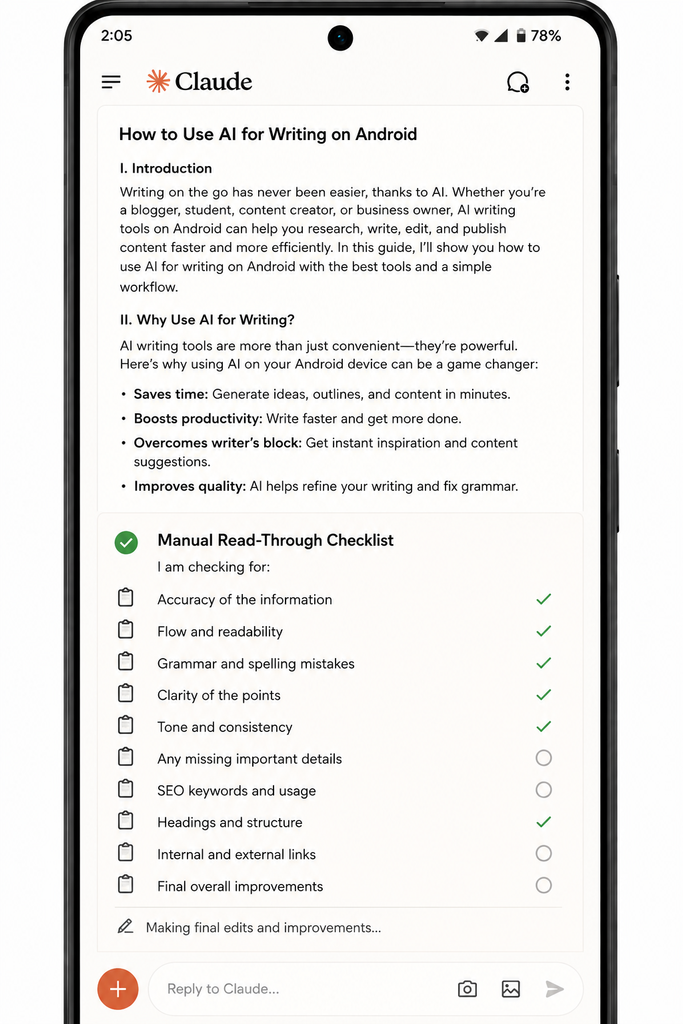
- Sentences that sound repetitive or awkward
- Points that do not match my original research
- Any claims that need to be double-checked
I usually read the content out loud in my head as I scroll, which helps me catch clunky phrasing faster than silent reading does. You might want to try the same trick if you tend to skim instead of reading closely.
Step 6. Refining Content with Grammarly
Once the draft feels solid, I copy it into the Grammarly app. This step focuses purely on language quality rather than content structure.
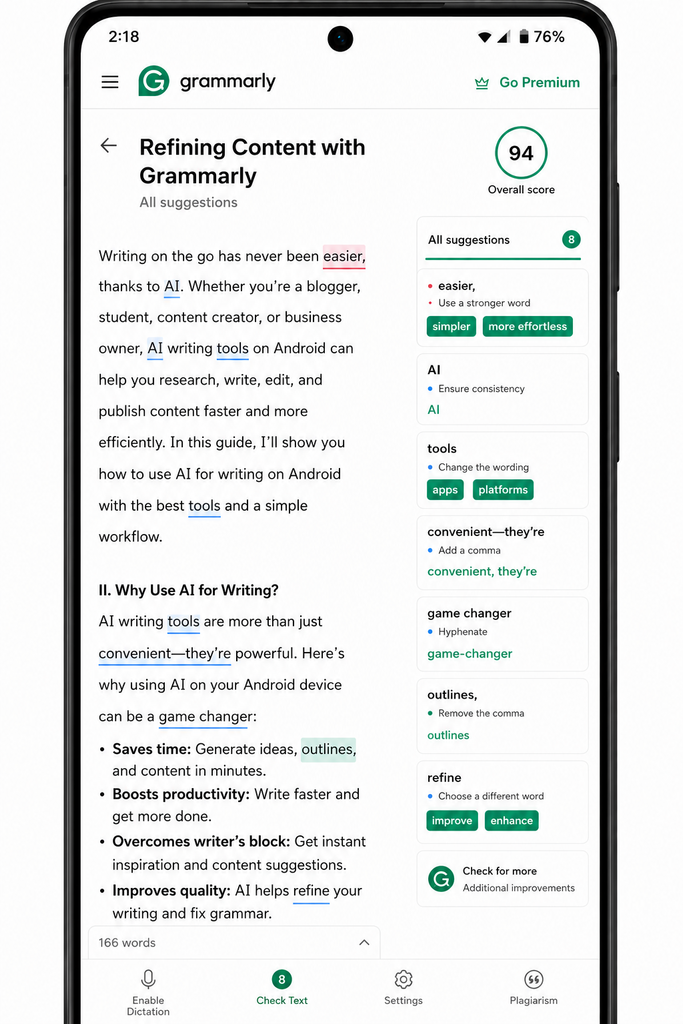
Grammarly on Android catches:
- Grammar and punctuation errors
- Passive voice overuse
- Sentence clarity issues
- Tone inconsistencies
I go through each suggestion instead of accepting all changes blindly, since some suggestions do not match the tone I am going for.
I go through each suggestion instead of accepting all changes blindly, since some suggestions do not match the tone I am going for. This helps me keep the final content closer to my natural writing voice.
Keep in mind that AI-generated content can still have awkward phrasing or grammar issues, and Grammarly helps you polish that language after the main writing is done.
Step 7. Running a Plagiarism Check
Before finalizing anything, I run the content through a plagiarism detection app or a web-based checker through my Android browser. This step is non-negotiable for me, especially since AI tools can sometimes generate content that closely resembles existing sources.
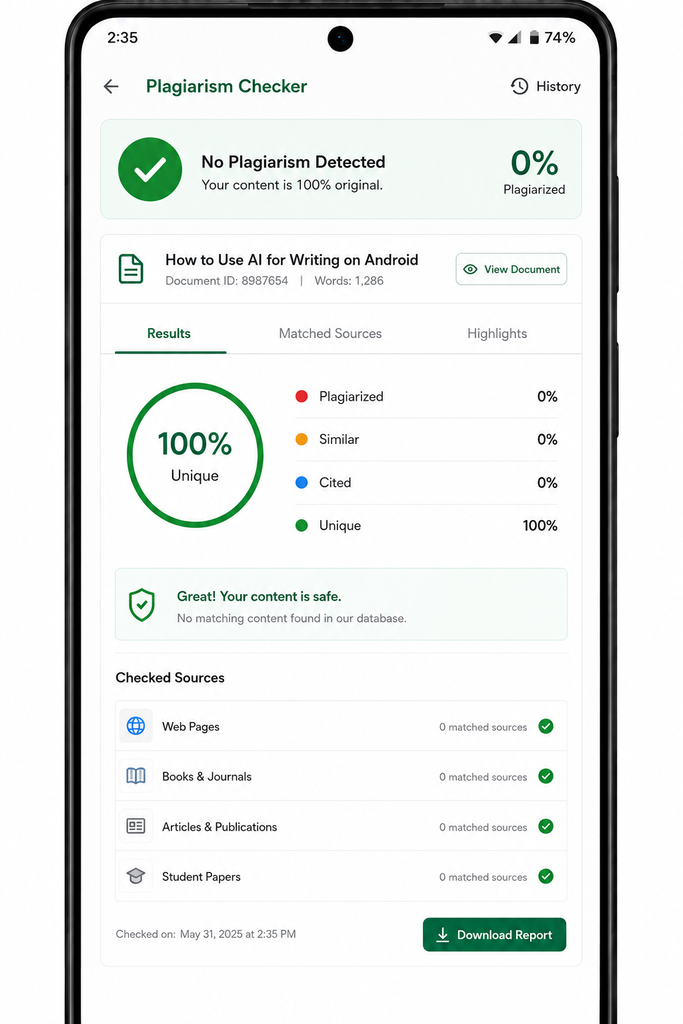
If any section gets flagged, I rewrite it manually in my own words rather than just rephrasing it slightly. You should treat this step the same way, since a light rewrite is often not enough to clear a flagged passage.
Step 8. Save and Organize the Document
Once the content passes all checks, I move it into Google Docs on Android. I keep a simple folder system based on client name or content type, which makes it easy to find drafts later.
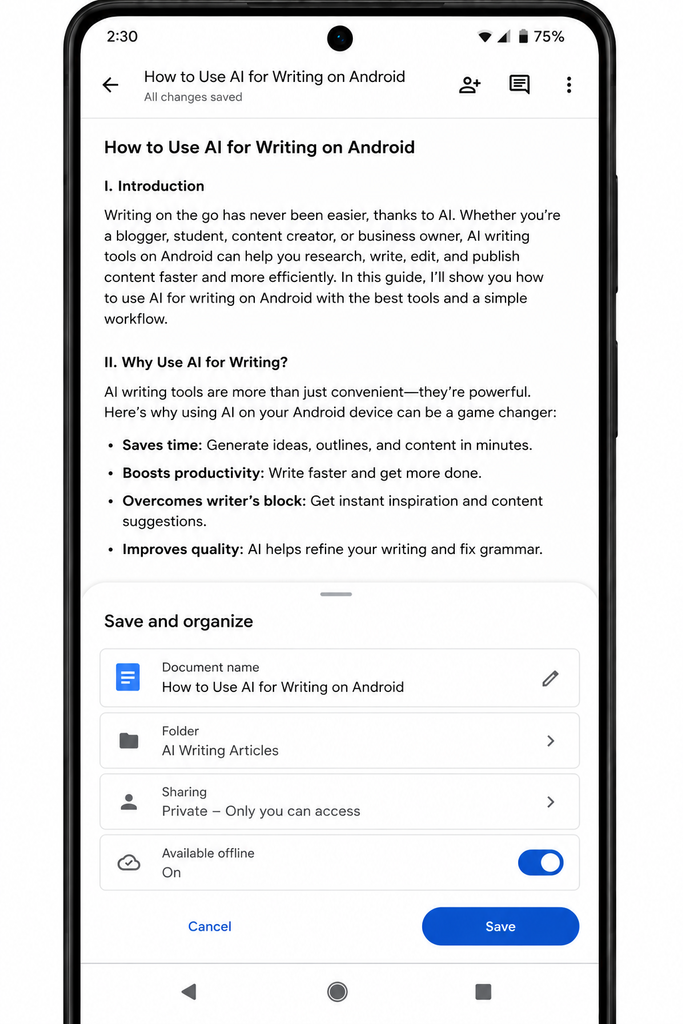
I also rename files immediately after saving, since going back to rename a pile of “Untitled document” files later is a waste of time.
This simple habit saves me time when I need to find older drafts later.
Pro Tips for AI Writing on Android
- Use split-screen mode if your device supports it, so you can view research and writing apps side by side
- Save your favorite ChatGPT and Claude prompts as text snippets for quick reuse
- Turn on voice typing for jotting down rough drafts faster
- Keep a dedicated folder in Google Drive for AI-generated drafts versus final versions, especially if you’re running out of Android storage.
- Charge your phone before long writing sessions, since multiple apps running together drain the battery fast.
