


I’ve cleaned up storage on my own Android phone plenty of times, and learned that starting with photos isn’t always the best approach. There are often faster, safer wins worth checking first.
Over time, I’ve settled on a sequence that helps me free up storage. Here’s exactly what I’d remove first, and why I’d leave photos for later.
Check What’s Actually Using Your Space First
Before deleting anything, I always open Settings, then Storage. This gives a breakdown of what’s eating your space: apps, photos, system files, and cached data.
I’ve seen people uninstall three apps expecting relief, when a single video app’s offline downloads were the real problem the whole time.
Once you see how your device storage is occupied, the next steps make a lot more sense.
What to Remove First if You’re Running Out of Android Storage – The Order I Follow
I go from top to bottom, starting with the quickest ways to clear wasted space before moving on to files you may actually want to keep.
1. Offline Downloads I Forgot About
Streaming apps and podcast apps quietly hoard offline downloads long after I’ve finished watching or listening.
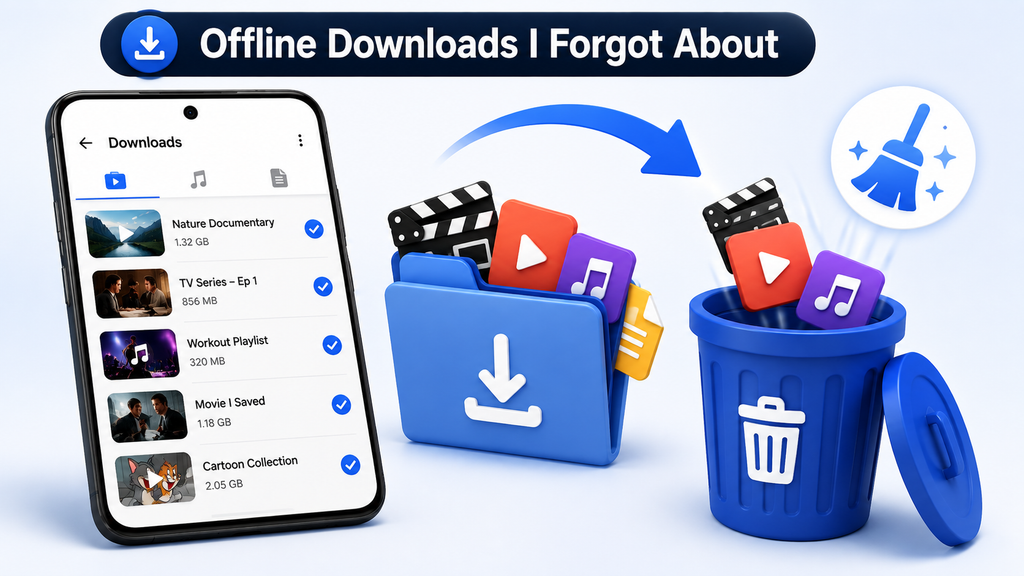
I specifically check:
- Downloaded shows or movies in Netflix, Prime Video, or similar apps
- Saved playlists or albums in Spotify or YouTube Music
- Old podcast episodes that auto-downloaded and never got played
- Offline map regions in Google Maps that I saved for a trip months ago
One offline movie can eat two to four gigabytes on its own. I’ve reclaimed more space here than anywhere else on this list.
2. App Cache, Not Just Random Apps
Clearing the cache on five random apps barely moves the needle. What actually helps is targeting the two or three apps that hoard the most cache, usually your browser, a social media app like Instagram, or a heavily used chat app.
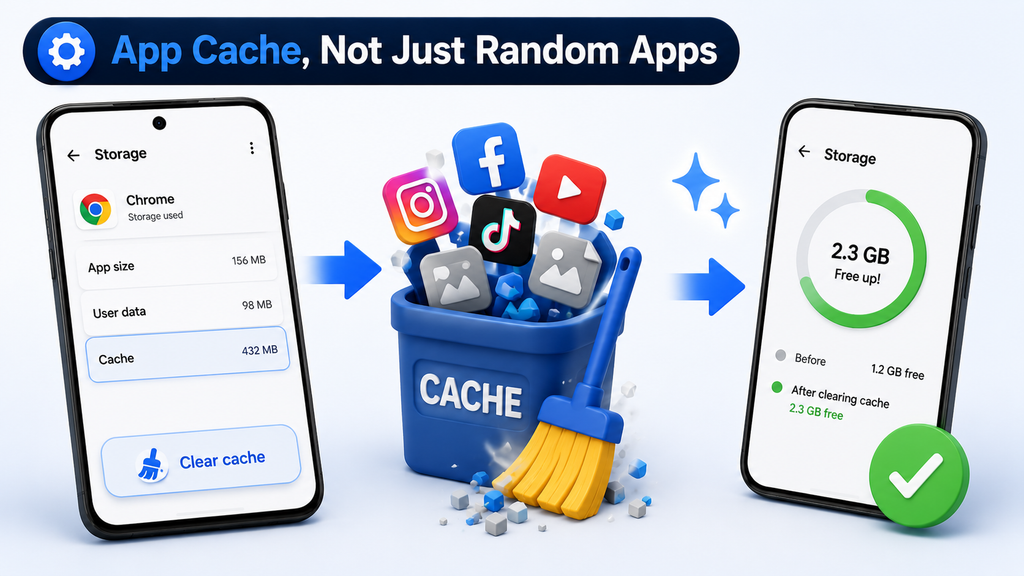
In Settings, under Storage, tap into the apps sorted by size and clear cache on the top offenders first. Clearing data is different; it wipes your login and settings too, so I only do that on apps I’m willing to set up again.
3. Apps I Haven’t Opened in Months
I sort my apps by last used date, not by how many I have installed. An app sitting untouched for four months is dead weight, even if it’s small.
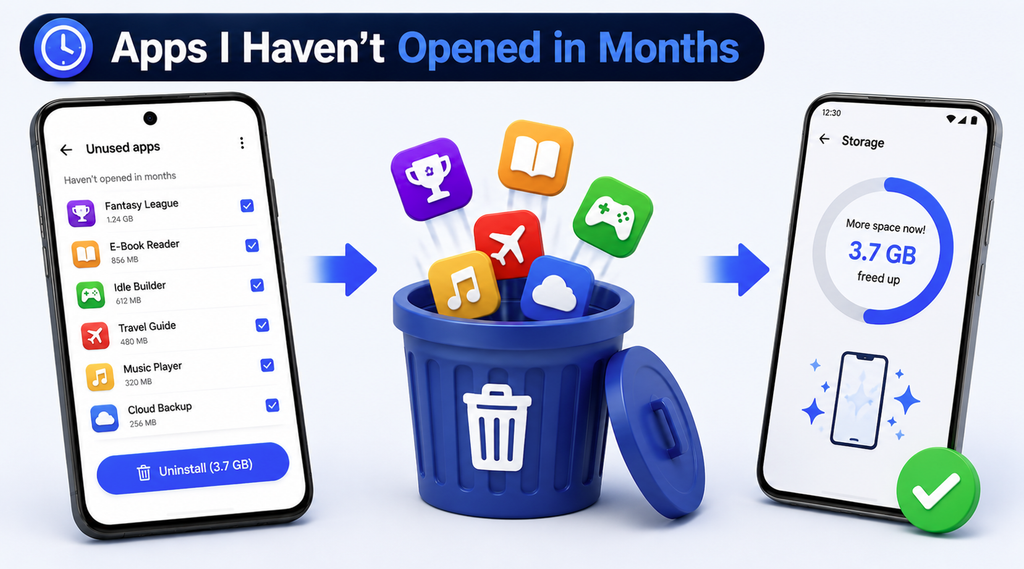
Uninstalling it costs nothing since I can always reinstall it later, and if I paid for it once, I won’t be charged again. You can also safely remove pre-installed system bloatware like AppCloud, which may appear on certain devices, without affecting performance.
4. Duplicate Photos, Screenshots, and Meme Clutter
Screenshots of receipts, memes forwarded from group chats, and accidental duplicate shots pile up without anyone noticing.
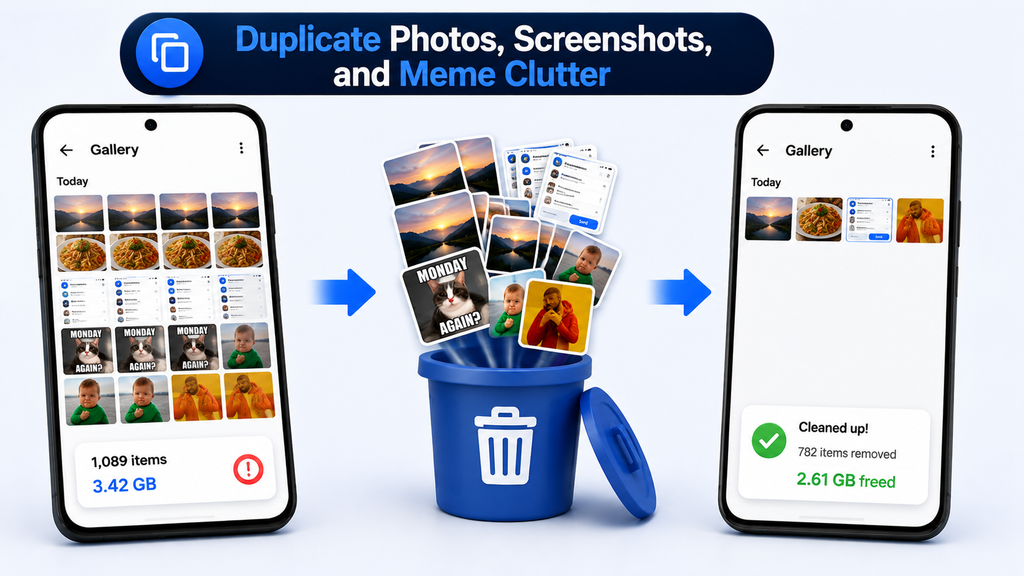
Most mobile phones now have a built-in cleanup tool, usually inside the Files app under a “Clean” option, that flags these automatically. I run it every couple of months, and it usually finds a surprising amount to remove.
5. Chat App Media I Never Look At Again
This one gets ignored constantly, and it shouldn’t. WhatsApp, Messenger, and Telegram auto-save every photo and video sent to you, including ones you never open twice.
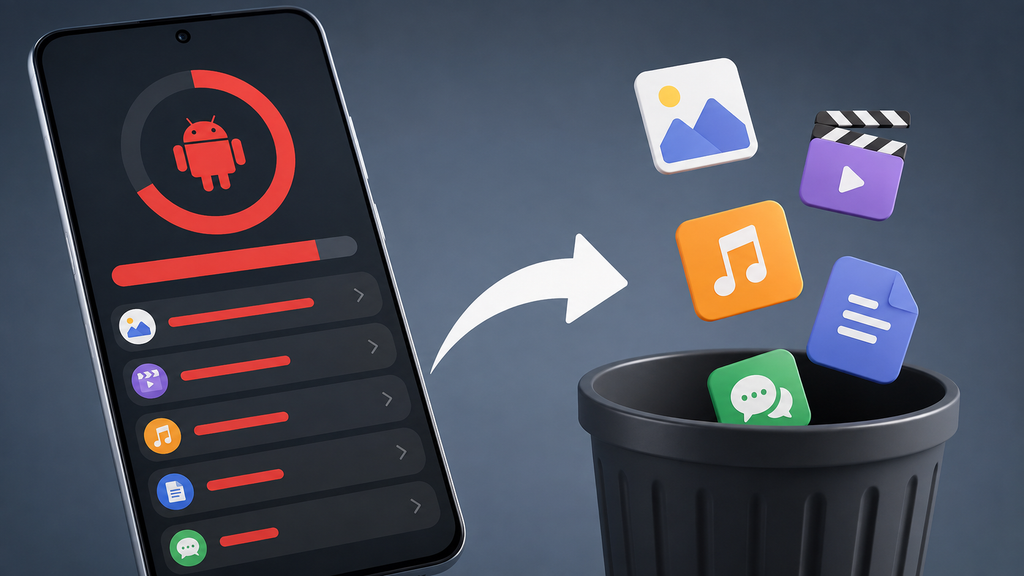
Go into each app’s settings and check your phone’s storage usage section. I’ve found gigabytes sitting in chat backups that I completely forgot existed and delete the chats I no longer require.
6. My Trash Folder
Most Android phones keep the deleted files in a Trash folder for about thirty days before deleting them permanently.
I clear this folder after confirming that the files sitting there are no longer required. It’s an easy few hundred megabytes that people forget still counts against their total storage.
Pro Tips for Handling Low Android Storage
I’ve also picked up a few small habits that make managing storage a lot less stressful.
- Set a reminder to check your storage breakdown once a month instead of waiting for a warning pop-up.
- Turn on automatic Google Photos backup so your images automatically upload and you don’t lose your media files even after freeing up space. But first, make sure the upload is completed.
- Keep one cloud storage app like Google Drive, Dropbox, or OneDrive as your main backup spot instead of spreading files across three or four.
- Restart your phone occasionally, as it clears temporary junk that builds up in the background.
- Avoid saving every meme or forwarded image. Delete it right after you’ve seen it.
When Cleanup Isn’t Enough
If I’ve gone through everything above and I’m still tight on space, I consider two options as the last resorts.
A factory reset wipes the phone completely and brings it back to its original state, but only after I’ve backed up everything I care about.
Moving files to external storage or a cloud service is the gentler option if I’m not ready for a full reset.
So while dealing with a storage shortage, I always start with offline downloads and app cache, then work my way down to apps I don’t use, duplicate files, and chat media. Photos come last, and only after they’re safely backed up.
Follow this order, and you’ll likely free up more space than you expect.
