


Your phone shows 100 percent in the morning, but by early afternoon it is already begging for a charger, even though you barely touched it. The screen was off most of the day, yet the battery kept dropping.
This is not always a sign of an aging battery. One or two apps may be quietly working in the background, checking for updates, syncing data, sending notifications, or tracking your location.
These processes can keep using power even when you are not actively using the app, leaving you with far less battery by the end of the day.
Social and Messaging Apps
Heads up: Facebook is the leading battery-draining social app on your phone, as Quartz notes, exactly as we expected.
These Android apps are usually the biggest quiet drainers because they are built to stay active. They check for new messages, refresh feeds, and preload video even when you are not looking at the screen, mainly through background sync and push notifications.
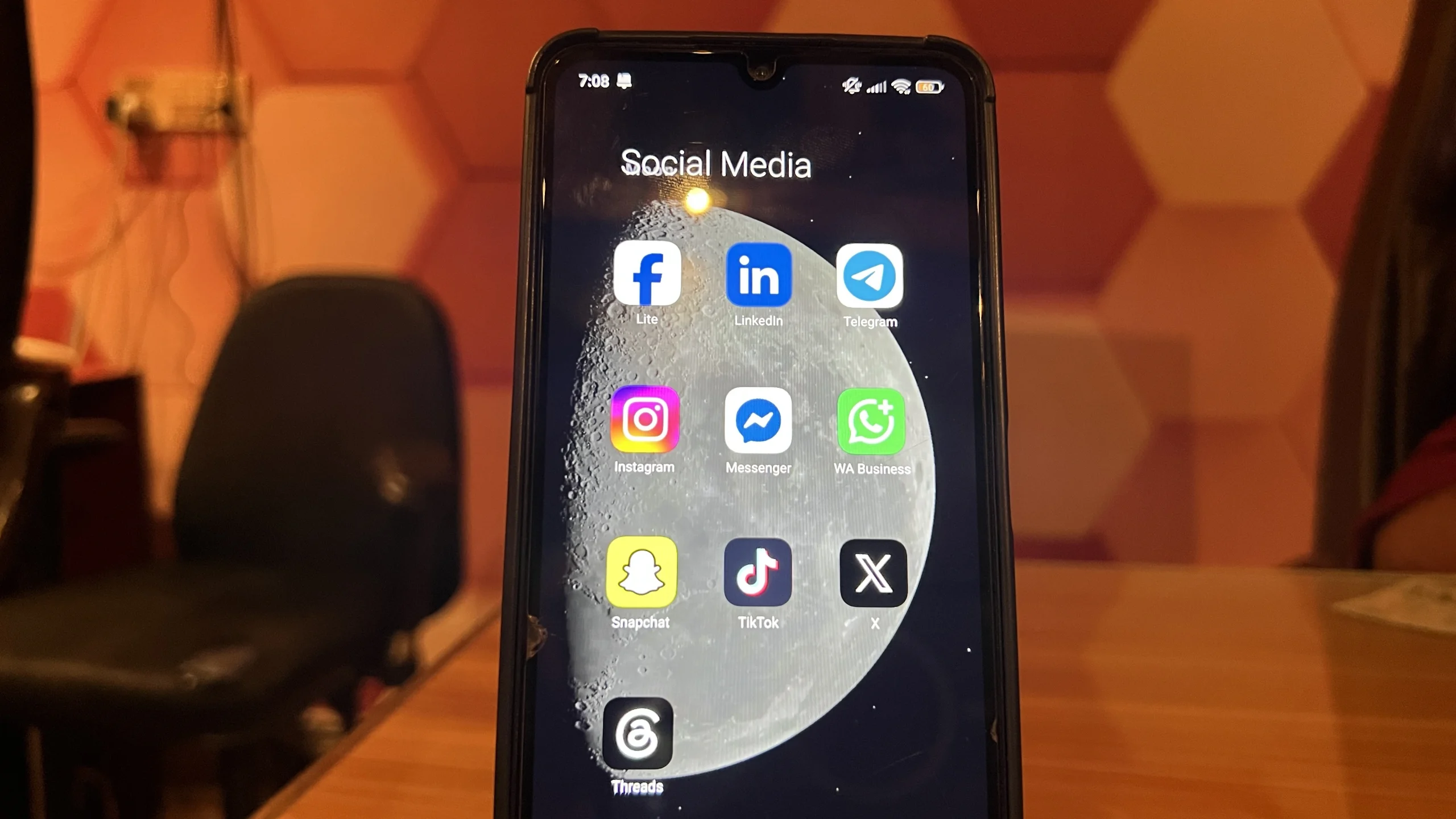
Autoplay video is a major factor too, since clips start loading as you scroll and continue briefly even after you switch away. This is why background time for these apps often runs much higher than your actual screen time.
Examples:
- Snapchat
- X (formerly Twitter)
Navigation and Location-Based Apps
Heads up: Due to its continuous GPS tracking and other always-on features, Google Maps can drain your battery, as we have experienced during travelling.
Any app that uses GPS tends to hold onto that signal longer than it needs to. Location checks are power-intensive. If an app’s permission is set to always allow rather than only while using the app, it can keep pinging your location well after you have closed it
This is especially common with apps that offer live tracking or real-time updates.
Examples:
- Google Maps
- Uber
- Careem
- Life360
- Waze
Streaming and Media Apps
Heads Up: According to Yahoo, Netflix is the ultimate battery hog on your phone.
Music and video apps often stay active after you switch away, either to finish a download, store cache data for offline use, or keep a connection alive so playback can resume instantly.
This convenience comes at a real battery cost, particularly when the app keeps buffering or syncing in the background without you noticing.
Examples:
- Spotify
- YouTube
- Netflix
- SoundCloud
- TikTok
System and Pre-Installed Services
Heads Up: On Google community threads, users flag Google Play Services as a surprisingly heavy power sink.
These are not always third-party apps you chose to install. Several core Android services run constantly to keep the system functioning, and while most of this is necessary, it can spike if something is misbehaving in the background.
Examples:
- Google Play Services
- Google Play Store
- Android System
- System UI
- Media Storage
Why Some Apps Drain Your Battery Without You Noticing
Apps do not need to be open to use power. Many keep running through background sync, location checks, push notifications, and pre-loaded media, and all of this adds up even while your phone sits untouched in your pocket.
Developers use something called a wake lock to keep the processor active for these tasks, and when it is not released properly, the phone never fully rests.
In practice, that can mean poorly optimized apps can keep working in the background when they should be idle.
Foreground vs background drain
Foreground usage is the battery an app consumes while you are actively looking at it. Background usage is what it consumes after you close it and move on.
Some background activity is expected. Messaging apps need to stay reachable, and a music app playing in the background is doing exactly what you asked it to do.
It becomes a problem when an app you barely opened shows a background time far longer than your actual usage.
A rule of thumb: if background time is close to or higher than your screen time for that app, it is worth investigating.
How to Check Which Apps Are Draining Your Battery
Android has a built-in tool for this, and checking it takes less than a minute.
Step-by-step: using the battery usage menu
- Open Settings and tap Battery
- Select Battery Usage
- Switch the view to since last full charge for a fuller picture
- Look at the apps listed at the top, sorted by consumption
- Tap any app to see its individual breakdown
The exact path varies slightly by brand:
| Device | Menu Path |
| Pixel/Stock Android | Settings > Battery > Battery Usage |
| Samsung Galaxy | Settings > Battery and Device Care > Battery > Battery Usage |
| OnePlus | Settings > Battery > tap the battery menu for a 24-hour breakdown |
Reading background vs foreground usage
Tap into any app on the list, and you will see a split between screen time and background time. An app with high total usage but almost all of it in foreground is probably fine, since that reflects how much you actually used it.
An app with low screen time but high background time is the one worth restricting.
How to Stop an App From Draining Your Battery
Once you have found the culprit, fixing it usually takes a few taps.
Restrict background activity
Open the app’s page in Settings, tap Battery, and choose Restricted or set background usage limits. This stops the app from running once you leave it, while still letting it work normally when open.
Background activity can also use mobile data, so restrict unwanted apps from using data in the background.
Adjust location, sync, and notification permissions
Switch location access to only while using the app instead of always. Turn off auto-sync for apps you check manually. Limiting notifications for low-priority apps also reduces how often they wake the phone.
Use battery saver or adaptive battery
Android’s built-in Battery Saver reduces background activity, GPS usage, and visual effects across the board. Adaptive Battery, found on most modern devices, learns your usage patterns and limits background access for apps you rarely open.
Should you restrict, limit, or uninstall?
- Restrict apps you use occasionally but want to keep functional
- Limit background only for apps you use daily and do not want to lose notifications from
- Uninstall apps you have not opened in weeks that still show background activity
When It’s Not the Apps that are Draining the Battery
Sometimes the drain has nothing to do with any single app.
- Battery health: batteries degrade over time and hold less charge as they age
- Weak signal or 5G: a poor connection forces the radio to work harder, and 5G itself uses more power than 4G when the signal is weak
- Extreme temperatures: both very hot and very cold conditions reduce battery efficiency
- Unused connections left on: Bluetooth, Wi-Fi, and NFC left active all day add a steady, small drain
How to Prevent Battery-Draining Apps From Coming Back
A quick monthly check of the Battery Usage menu catches new problem apps before they become a habit.
Review permissions when you install anything new, since an app asking for constant location access rarely needs it. Keeping apps updated also matters, since developers frequently patch the exact background bugs that cause this kind of drain.
People Also Ask
If an app you rarely open is using 10 percent or more of your battery, that is generally worth investigating. Compare it against your actual screen time for that app to judge if it is fair.
Not always, since many apps restart background services shortly after being swiped away. Restricting background usage in Settings is a more reliable fix.
Yes, this can happen, especially with messaging apps set to Restricted mode. For apps you rely on for timely alerts, Optimized mode is usually a safer choice.
