


Some Android apps continue working in the background even after you stop using them. This can drain your battery, use mobile data, or keep your phone busy when you do not need the app running. Android manages most background activity automatically, but you can still control individual apps when they become a problem.
You can check which apps are using the most resources, restrict their background activity, turn off background data, or force stop apps that are misbehaving. In this article, I’ll show you how to stop apps from running unnecessarily in the background on Android.
Check Which Apps Are Using Battery in the Background
Start by checking battery usage rather than guessing which app is responsible.
- Open Settings.
- Tap Battery.
- Under the Battery Usage graph, review the list of apps and how much battery each one has used.
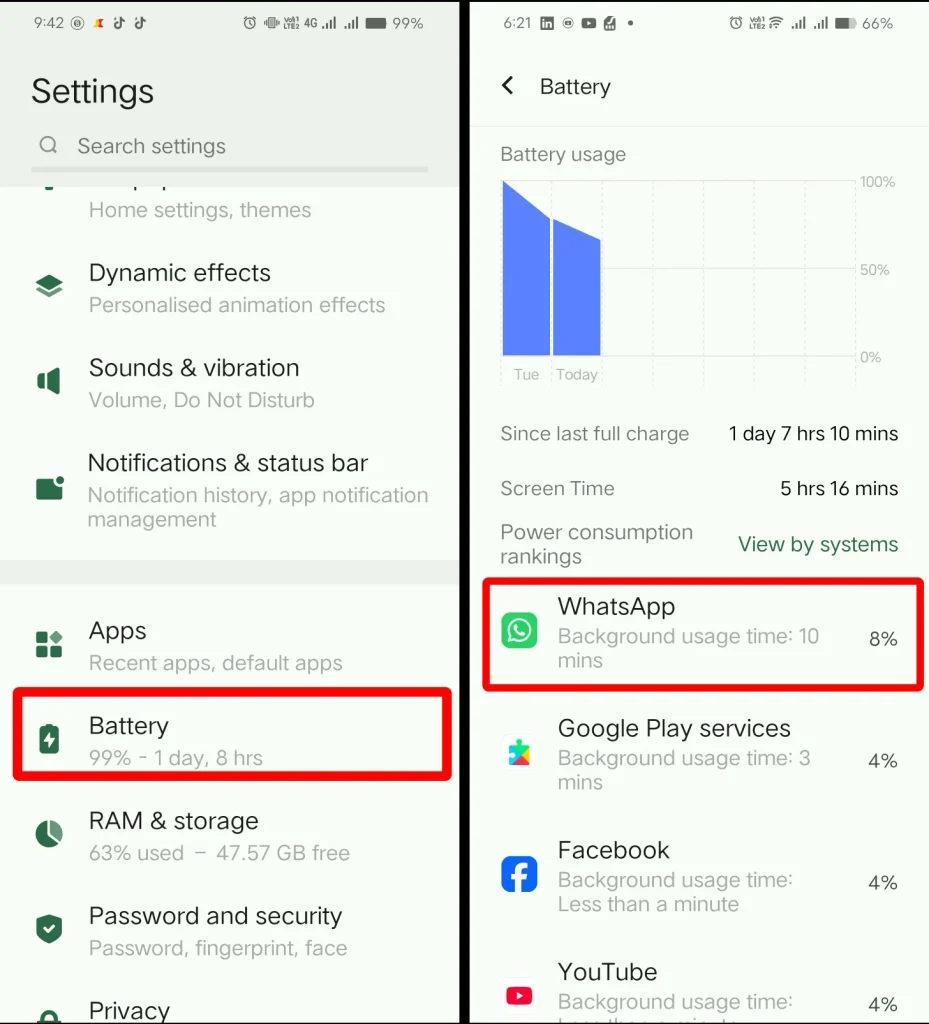
Look for unusual usage. High battery consumption from a game you played for two hours is expected. An app you barely opened using a noticeable amount of battery deserves more attention.
If the problem started after installing a new app, review its permissions, developer, and other details as well.
How to Restrict Background Battery Usage?
Once you identify the app, open its battery settings and toggle its background usage off.
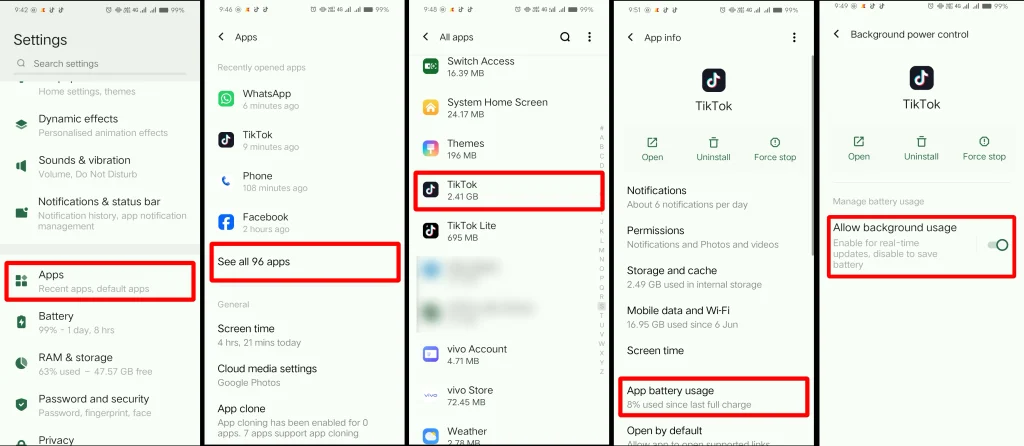
- Open Settings.
- Tap Apps and navigate to All Apps.
- Select the app you want to restrict.
- Tap App Battery usage
- Under Manage battery usage, turn off the Allow background usage toggle.
If you’re still dealing with excessive battery drain, see our guide to why Android apps drain your battery.
How to Stop an App From Using Background Mobile Data?
Apps can use mobile data in the background, so restricting background usage can reduce unnecessary data use when updates or syncing are not needed.
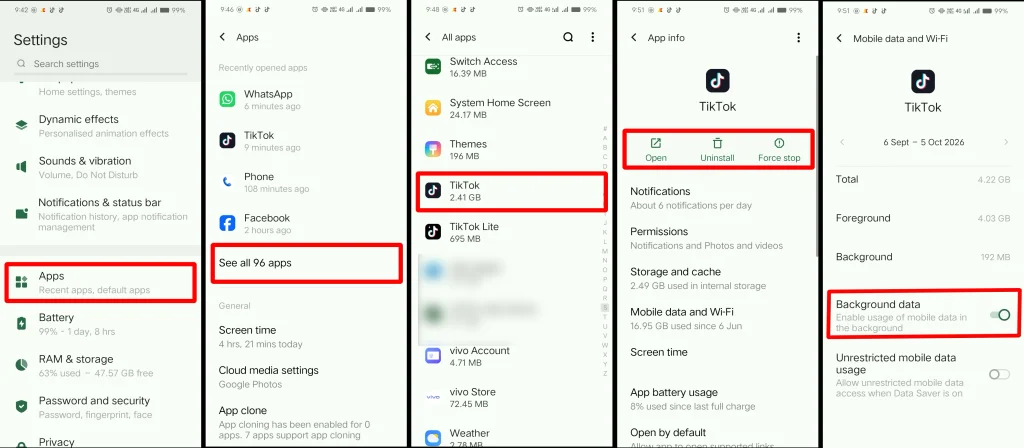
- Open Settings.
- Tap Apps and navigate to All Apps.
- Select the app.
- Tap Mobile data and Wi-Fi (or search Background data in Settings if you don’t see this option).
- Turn off Background data.
Restricting background data can also curb silent utilities like AppCloud, which is pre-installed on some phones. However, be careful with messaging, email, or cloud storage apps. Restricting their network access can break timely updates and syncing.
How to Force Stop an App That Is Misbehaving?
If an app freezes, keeps behaving unexpectedly, or continues an activity that should have stopped, try Force Stop.
- Open Settings.
- Tap Apps, then All Apps.
- Select the app.
- Tap Force Stop.
- Confirm when prompted.
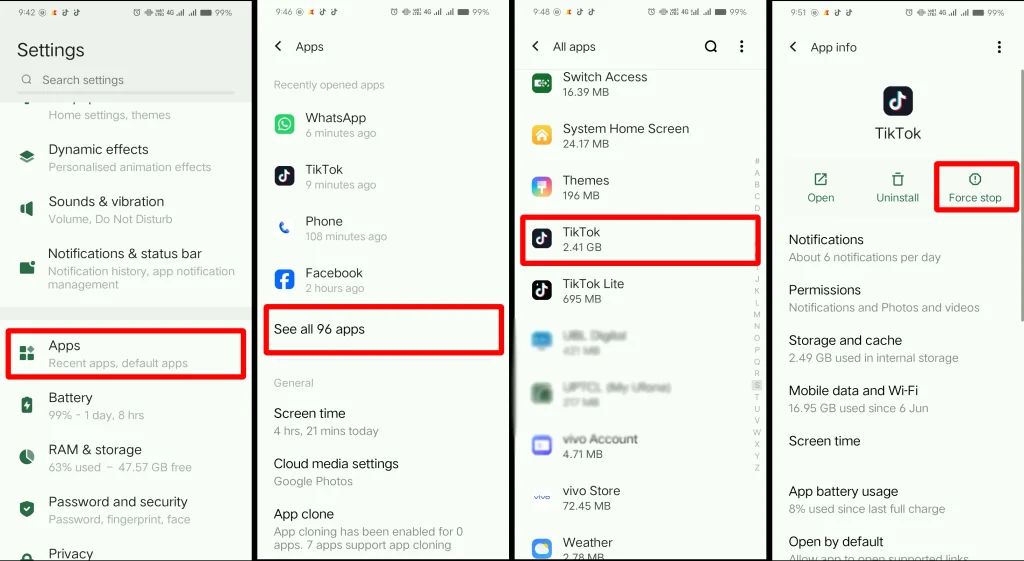
Force stopping an app ends its current activity, but it is primarily a troubleshooting measure rather than a permanent background-management setting. Opening the app again, it should operate normally.
If you repeatedly need to force stop the same app, check for an update, restart your phone, or consider reinstalling the app.
Do You Need to Close All Recent Apps?
No. You generally do not need to keep swiping every app away from the Recent Apps screen.
Android has built-in systems that manage inactive apps and limit background work. Features such as Doze and App Standby help reduce CPU and network activity when the device or an app is not actively being used.
On older phones, however, closing a few resource-heavy apps may sometimes help reduce RAM usage and device slowdowns.
Which Apps Should You Avoid Restricting?
Some apps rely on background activity to provide their main features. Before restricting an app, consider its purpose:
- Messaging and communication apps: Background access helps deliver messages and notifications on time.
- Navigation apps: Background activity allows navigation to continue during an active trip.
- Music or podcast apps: Background access keeps audio playing when you leave the app or lock your screen.
- Fitness apps: Background activity allows the app to track workouts, steps, location, or other activity.
- Cloud backup and synchronization apps: These apps use background activity to upload files and keep your data synchronized.
- Apps with timely alerts: Background access allows important updates, reminders, and notifications to reach you promptly.
Apps running ongoing tasks in the background use Android foreground services, which require a persistent notification. Restrict an app when its background activity is causing an unwanted problem, not simply because it appears in your battery usage.
What If an App Still Keeps Running in the Background?
If a specific app continues causing battery, data, or performance problems after you restrict it, work through these steps in order:
- Update the app through Google Play.
- Restart your phone and check the usage again.
- Check for an Android system update.
- Clear the app’s cache if the problem may be related to temporary data.
- Reinstall the app if the unusual behavior continues.
- Uninstall the app if you no longer need it.
You do not need to install a third-party RAM cleaner or task-killer app simply to control normal. If the problem persists after these steps, the app itself may be responsible rather than normal Android background activity.
Why Are the Settings Different on My Android Phone?
Google Pixel, Samsung Galaxy, OnePlus, Xiaomi, Motorola, and other Android phones do not always use identical Settings menus.
If you cannot find the options mentioned above:
- Open Settings.
- Tap the search bar at the top.
- Search for Battery usage, App battery usage, Background usage, or Background data.
- Select the matching result for your device.
This is usually the quickest way to find the equivalent setting on your device.
Overall, Android already manages most background activity automatically. Restricting problem apps can reduce unnecessary battery and data use, while Force Stop can help with apps that misbehave or keep running unexpectedly.
